Migrate Data Into Eigenn
Connect source systems and backfill transaction history, but do not use Eigenn as a replacement general ledger.
Summary
Eigenn can synchronize supported financial systems and import transaction history from CSV. The current web app has no general-purpose spreadsheet importer for customers, invoices, forecasts, or arbitrary workbook tabs.
Capabilities
Choose the Right Migration Method
| Source | Supported path | Best use |
|---|---|---|
| Bank feed | Connect a bank provider | Continuous transaction and balance synchronization |
| Stripe | Connect the Stripe integration | Customers, invoices, subscriptions, payments, and Stripe-derived metrics supported by the sync |
| Accounting integration | Connect the provider under Marketplace | Provider-supported customer, invoice, payment, and ledger synchronization |
| Transaction CSV | Transactions → More transaction actions → Add transactions → Import & backfill | Historical bank or card activity not available from a live connection |
| HTML or Markdown document | Open a document and choose Import | Insert document content into the editor |
Document import and financial-record import are separate. The document editor accepts HTML and Markdown. The editor shows its Word and CSV options as unavailable. Transaction CSV import is available from the Transactions workspace.
Migration Limitations
- Eigenn can authorize a connection before its historical sync is complete.
- Transaction import does not display a downloadable error file.
- The modal does not show an import history or undo action.
- The CSV column map covers amount, date, description, and optional balance. This flow does not persist arbitrary columns as custom transaction fields.
- Workspace export defaults affect transaction exports, not imports.
- A change to the workspace base currency is separate from the import of source-currency records.
Prerequisites
You must have access to your source banking, Stripe, or accounting provider and be able to export transaction data as a CSV file. Choose an existing destination bank account or create a manual account in the import dialog. CSV files must be under 5 MB and include a header with two or more data rows. Appropriate permissions to connect integrations or perform manual imports are required.
Concepts
Keep the Accounting Source of Record
Use Eigenn as the operations workspace around the financial record. Keep the accounting system responsible for journal entries, close, tax adjustments, and statutory reporting. Do this unless your finance policy explicitly says otherwise.
Before migration:
- decide which connected system owns each record type
- choose the active workspace and the base currency
- find the bank account that each CSV belongs to
- preserve a copy of every source file
- record the cutover date and the date range that each source covers
Do not load the same historical period from both a live integration and CSV. First decide how you will handle duplicates.
Workflow
Import Transaction History From CSV
- Open Transactions.
- Open More transaction actions, then Add transactions.
- Select Import & backfill.
- Drop a CSV file or browse for one.
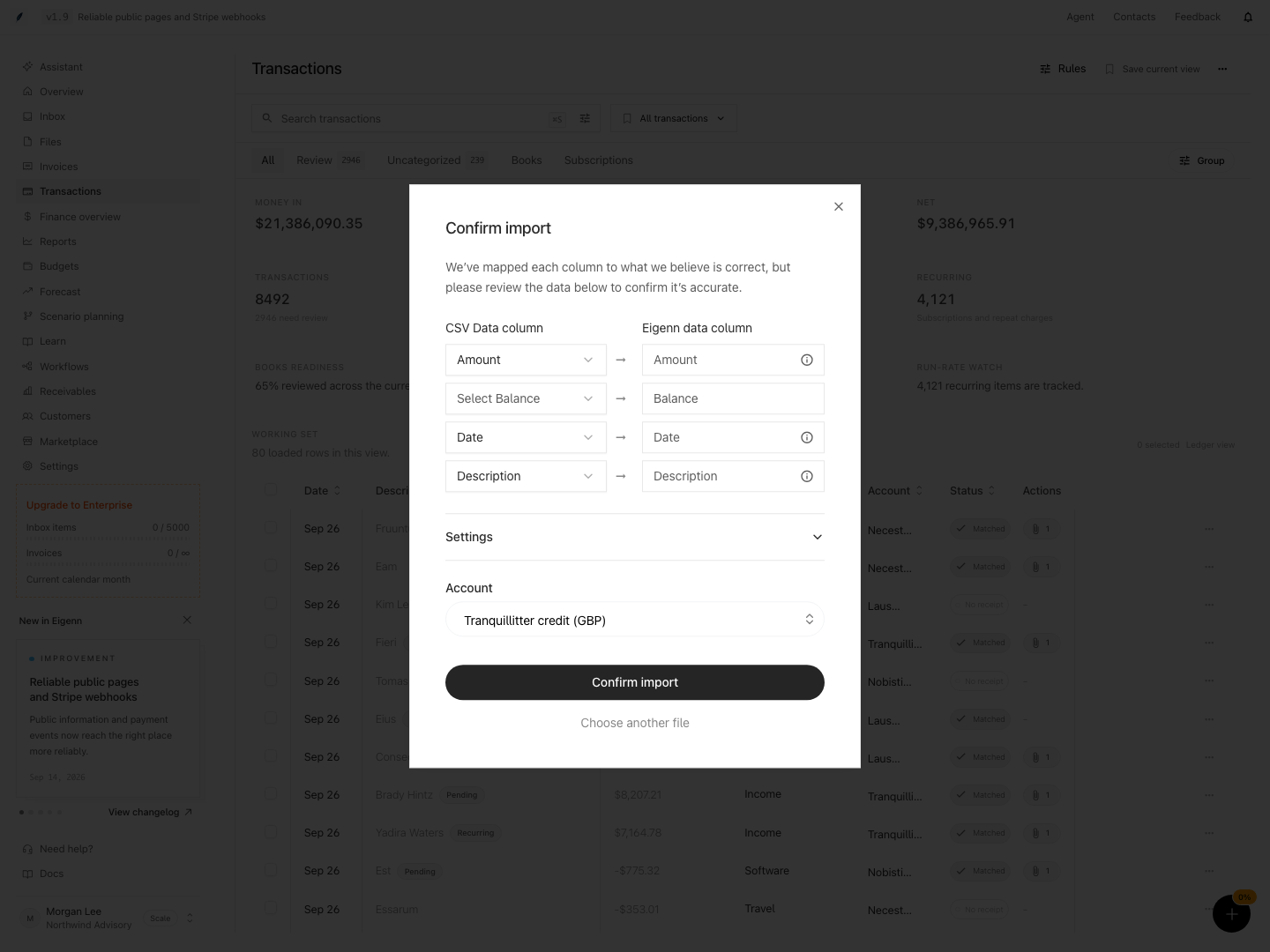
- Examine the proposed column map.
- Map the necessary fields:
- Amount
- Date
- Description
- Optionally map Balance. Eigenn uses the first data row's value as the account balance. Put the intended balance in that row; leave Balance unmapped if you only want to add transactions.
- Select the destination bank account. To create a manual account, type its name in Select or create account and choose Create.
- If that account has no saved currency, select the CSV currency.
- Turn on Inverted amount for a credit-account export that needs reversed signs.
- Select Confirm import.
- Wait for the completion message.
The file must be CSV, no larger than 5 MB, and contain a header plus at least two data rows. The import preview reads the first rows. Review any proposed mappings, or select the columns manually. Hover over a field's information icon to check the first-row value before confirming.
Cut Over by Record Type
Transactions
Connect the bank source first. Use CSV only for history outside the connection's available window or for an unsupported account export.
Customers and invoices
Prefer a supported Stripe or accounting sync. There is no generic customer or invoice CSV wizard in the current web app. Create small missing sets manually, or use a documented integration or API workflow.
Documents
Upload receipts and source documents to Inbox or Vault. Import HTML or Markdown only when you want to insert their content into an editable document.
Forecasts and operations notes
Recreate the current operations assumptions in Eigenn. Retain the source workbook as migration evidence. There is no arbitrary forecast-workbook importer.
Behavior specification
How Eigenn Applies the Import
- You must select an account, and that account must belong to the active workspace.
- Eigenn stores the chosen currency on that account as part of import submission.
- A mapped balance replaces the account balance with the first data row's value. Inverted amount reverses both transaction amounts and that balance. Choosing None leaves the balance unchanged.
- The account currency and optional balance update when the import is submitted, before the transaction job finishes. A failed job does not imply that those account changes were rolled back.
- Eigenn inserts the valid rows in batches.
- Invalid data can fail the job or cause individual rows to be skipped. A completion message does not guarantee that every source row was inserted.
- Eigenn skips an existing transaction identity. Re-importing the same file into the same account does not add duplicate rows.
- Imported descriptions use title-style capitalization, so their casing can differ from the CSV.
- Eigenn queues the imported records for transaction enrichment after insertion.
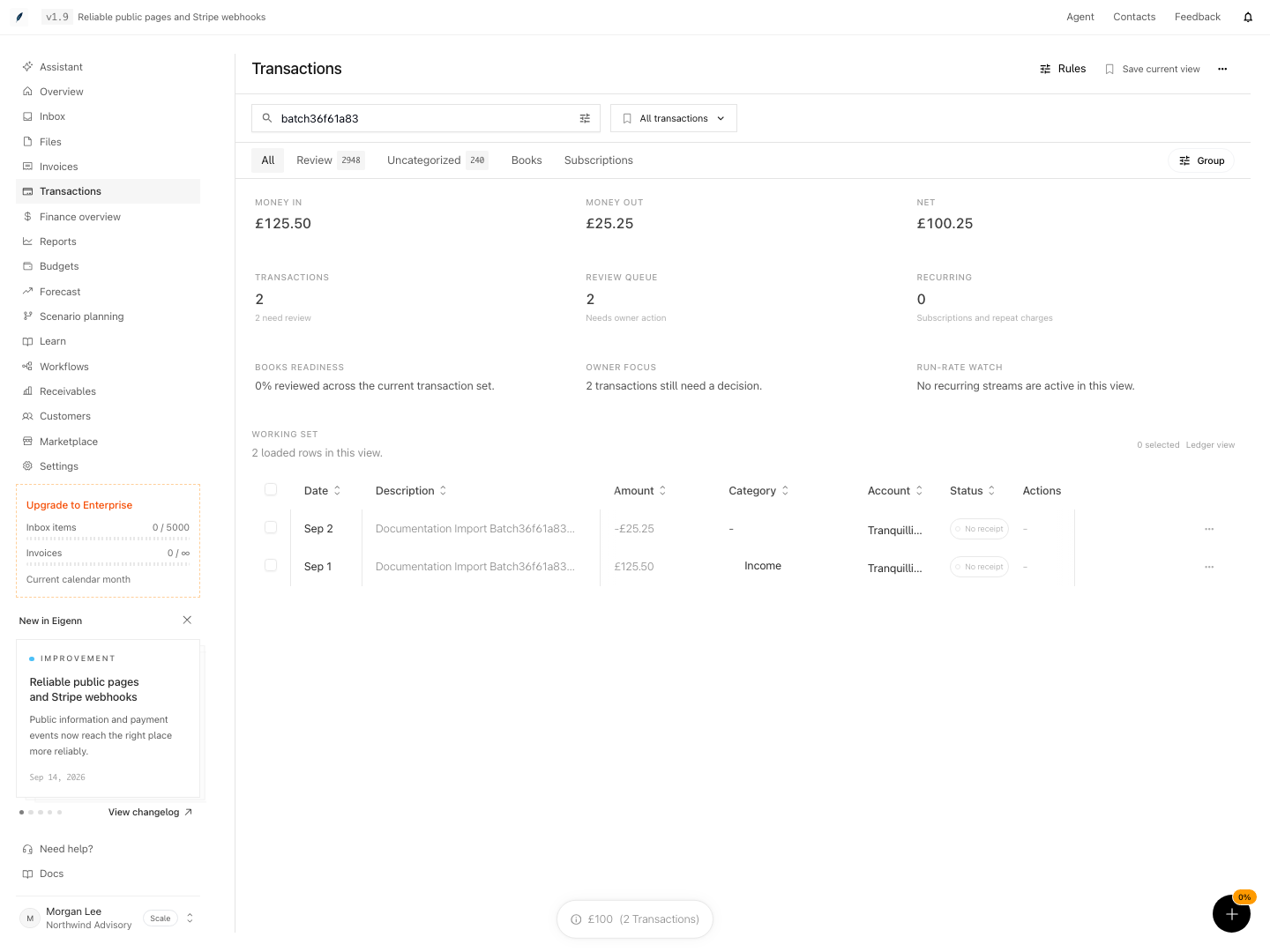
The success toast reports that the job completed. The current modal does not show imported, skipped, and error counts. Examine the destination account after completion.
Diagrams
Rendering diagram…
Screenshots
Verification
Check a Backfill
Check a small file before you import the complete history.
- Export a representative period from the source.
- Confirm whether debits are negative or positive.
- Import the sample into the correct account.
- Compare the row count, the start and end balance, the dates, the descriptions, and the sign direction.
- Confirm that the import did not introduce duplicates.
- Examine the categories and the reconciliation suggestions.
- Import the other periods only after this check.
The current web app has no import rollback control. If a bad import creates records, stop. Assess the affected rows before you delete or edit records in bulk.
Troubleshoot
Eigenn rejects the CSV before the column map step
Confirm that it is a .csv file under 5 MB with a header and at least two data rows. Open the file in a text editor to check that the columns have delimiters.
The proposed column map is wrong
Manually select the source column for Amount, Date, and Description. Do not continue until the first-row previews make sense.
The credits and debits have the wrong sign
Return to the import settings. Turn Inverted amount on or off as the source needs. Check a small sample before you import again.
The destination account is not in the list
Open the account selector, enter a new name, and choose Create to make a manual account. Select its currency before confirming the import. For a live bank feed, connect the institution instead.
The file upload fails
The dialog shows an upload error and preserves your file, mappings, and selected account. Retry Confirm import after the connection recovers. Wait for the completion message, then reload the ledger and check the rows.
The job completed but some rows are absent
Check for invalid amounts or dates. Check also for duplicates that are already in the workspace. The current modal does not show row-level errors. Retain the source file. If you cannot explain the gap, contact support with the date range, the destination account, and the page URL.
- Export a small sample of transaction history as a CSV from your source system. Outcome: The file meets size and format requirements and includes a header.
- Connect or create the destination bank account in Eigenn. Outcome: The account appears in the destination selection list.
- Import the sample CSV file and map Amount, Date, and Description columns. Outcome: Column previews show correct mapping, and you can proceed.
- Check the first imported transactions for correct row count, amounts, signs, descriptions, and dates. Outcome: Data matches expectations and no unexpected duplicates appear.
- Test toggling Inverted amount if debits and credits are reversed. Outcome: Final sign direction matches the original system.
- Review categories and reconciliation suggestions for imported transactions. Outcome: Suggested matches are logical.
- Attempt to import a duplicate of the same period. Outcome: System skips transactions already present.
- Inspect the account balance (if mapped) after import. Outcome: The account shows the first data row's balance, with the selected sign direction, after reload.