Troubleshoot Account Access
Diagnose hosted sign-in, SSO, workspace selection, MFA, subscription, and connection gates with no risk to credentials.
Summary
Identity, workspace membership, MFA policy, subscription state, or necessary financial connections can block account access. Find the page and the message that you see before you change a setting.
Capabilities
Troubleshooting provides clear guidance for regaining account access by addressing failures in hosted sign-in flows, SSO setup, workspace membership conflicts, MFA requirements, subscription or billing gates, and permissions errors. It helps users navigate error stages, prevent account duplication, and safely escalate issues without exposing sensitive credentials.
Prerequisites
You need access to the device/browser you’re trying to sign in from, the sign-in method or identity provider previously used (such as Google, Apple, GitHub, or company SSO), and relevant account or workspace details like your sign-in email. For owners/admins, organization setup rights and access to billing and security settings may be required.
Concepts
Protect Credentials First
Never send or paste:
- password or magic-link contents
- MFA QR code, manual secret, or six-digit code
- session cookie
- OAuth access or refresh token
- API key or webhook secret
- bank login credentials
- full payment-card details
Support can investigate with the sign-in email, organization domain, workspace, time, page URL, and exact non-secret error text.
Workflow
1. Find the Stage That Blocks You
| What you see | Likely stage |
|---|---|
| Sign-in page repeats | Hosted identity start or callback |
| SSO Setup Required | Organization/domain configuration |
| Create your Eigenn workspace | No active workspace membership |
| Set up two-factor authentication | MFA enrollment |
| Six-digit verification page | Workspace MFA policy or fresh sign-in verification |
| Choose the plan or Verifying subscription | Subscription gate |
| Non-dismissible Stripe and bank setup | Necessary initial connections |
| Permission error inside Settings | Role does not let you do the requested write |
Work the relevant section below. Do not create a second account or workspace until you confirm that the first one does not exist.
2. Retry the Hosted Sign-In Method
Use the same method that you used before:
- Apple
- GitHub
- email through the hosted identity flow
- company SSO
The app remembers the last used provider in the browser and marks it Last used. That hint is local to the browser, not proof of the account's identity provider.
If a protected-page link sent you to sign-in, keep the return_to destination and complete authentication in the same browser. Eigenn rejects unsafe external return destinations.
Rate-limited sign-in
The authentication start endpoint lets you make a limited number of tries in a 15-minute window. Do not try again and again. Wait for the window to clear. Then try one time.
Callback failed
If sign-in returns with an authentication-callback error:
- Start again from the Sign-in page.
- Use the same provider.
- Let the browser use the necessary cookies.
- Do not open many callback tabs at the same time.
- Record the time and the final URL if it fails again.
3. Resolve SSO Setup Required
The SSO error page appears when domain-based authentication cannot find a team or an organization that you set up.
If you are a member
Contact the organization owner. Send the company domain and the SSO error text. Do not create a separate personal workspace unless the owner directs you to.
If you are the owner
- Sign in through an available non-SSO owner identity.
- Open Settings → Account → Organizations.
- Create or select the organization.
- Confirm its company domain.
- Open the available identity administration link.
- Complete the SSO configuration there.
- Test with a non-owner user.
The workspace Security page does not set up SSO.
4. Restore Workspace Selection
Eigenn sends a new user with no membership to workspace creation. A user with more than one membership and no selected workspace must choose one. The server does not guess.
If a current user sees workspace creation unexpectedly:
- Open the Teams page if available.
- Confirm that the invitation went to the same email that you use to sign in.
- Ask an owner to check the membership and the role.
- Switch to the intended workspace.
- Reload the original page.
Workspace invitations are email-specific. If you sign in with another provider email, Eigenn can create or select a different local identity.
5. Recover MFA Access
You have no enrolled factor
When the workspace needs MFA and no factor exists, the verification flow sends you to setup.
- Generate the QR code.
- Add it to a TOTP authenticator.
- Enter the current six-digit code.
- Confirm the code.
- Return to the requested page.
Eigenn rejects a valid code
- confirm that the code belongs to the displayed account
- turn on automatic time on the authenticator device
- wait for the next code and enter it one time only
- do not reuse a code after you generate the enrollment again
You lost a device
Use another enrolled factor if one exists. After you get access again, open Settings → Account → Security. Add a replacement. Confirm it. Then remove the lost factor.
If every factor is unavailable, use public Contact. The current app does not show recovery codes or a self-service factor-reset path.
You cannot remove the last factor
The active membership is subject to the future-member MFA policy. Add another factor first.
6. Resolve Subscription Verification
Eigenn can redirect a new user without active access to plan setup. After successful checkout, subscription activation can take time to synchronize.
- Keep the checkout return page open.
- Wait for the status poll.
- Use Retry status check after its timeout.
- Compare hosted billing before you purchase again.
For an established workspace, open Settings → Billing and Manage billing. A billing restriction can permit reads but reject writes across the app.
7. Complete the Necessary Connections
Protected pages can show a setup modal that blocks you until the active workspace has:
- Stripe connected
- at least one bank connection
If one is already connected, the flow skips it. If the modal remains after both appear present:
- Confirm that both belong to the same active workspace.
- Wait for the bank account selection and the sync to complete.
- Refresh one time.
- Return to the summary and select Finish setup.
- Contact support with provider, institution, time, and page URL if the checker remains stale.
8. Diagnose Settings Permission Errors
Page visibility and write permission are separate.
- General workspace changes need Owner.
- Workspace Security changes need Owner.
- Custom email-domain lifecycle needs Owner.
- Approval-policy changes need Owner.
- Notification writes need Owner or Member.
- Owner or Member can do plan checkout, portal, and cancellation.
- Viewer can read team-scoped settings but cannot write them.
It is safer to switch to an owner account than to submit a visible control that the server rejects again and again.
9. Profile Email and Sign-In Identity Differ
A change to Settings → Account → General → Email updates the local Eigenn profile. It does not check or update the hosted identity provider in the same operation.
If sign-in still recognizes the old email, continue with the identity provider's address until its supported update process is complete. Ask an organization administrator for SSO identities.
10. Escalate Safely
When signed in, use Settings → Account → Support. When signed out, use the public Contact page and its published email.
Include:
- sign-in method
- profile email and company domain
- workspace name
- the page and URL that block you
- exact error message
- timestamp and timezone
- last successful access
- whether another user can enter the workspace
Do not include secrets even when asked for more detail.
Behavior specification
The troubleshooting workflow separates account access problems into concrete stages and identity flows. Review and redact sensitive credentials before contacting support; do not rely on the form to detect them. Each error type has a mapped resolution process: sign-in failures guide retries with original providers and restrict excessive attempts, SSO setup distinguishes member or owner actions, workspace confusion checks membership and roles, MFA gates enforce added factors and device rules, billing and permissions errors define role-based access, and recovery paths avoid account duplication and credential exposure.
Diagrams
Rendering diagram…
Screenshots
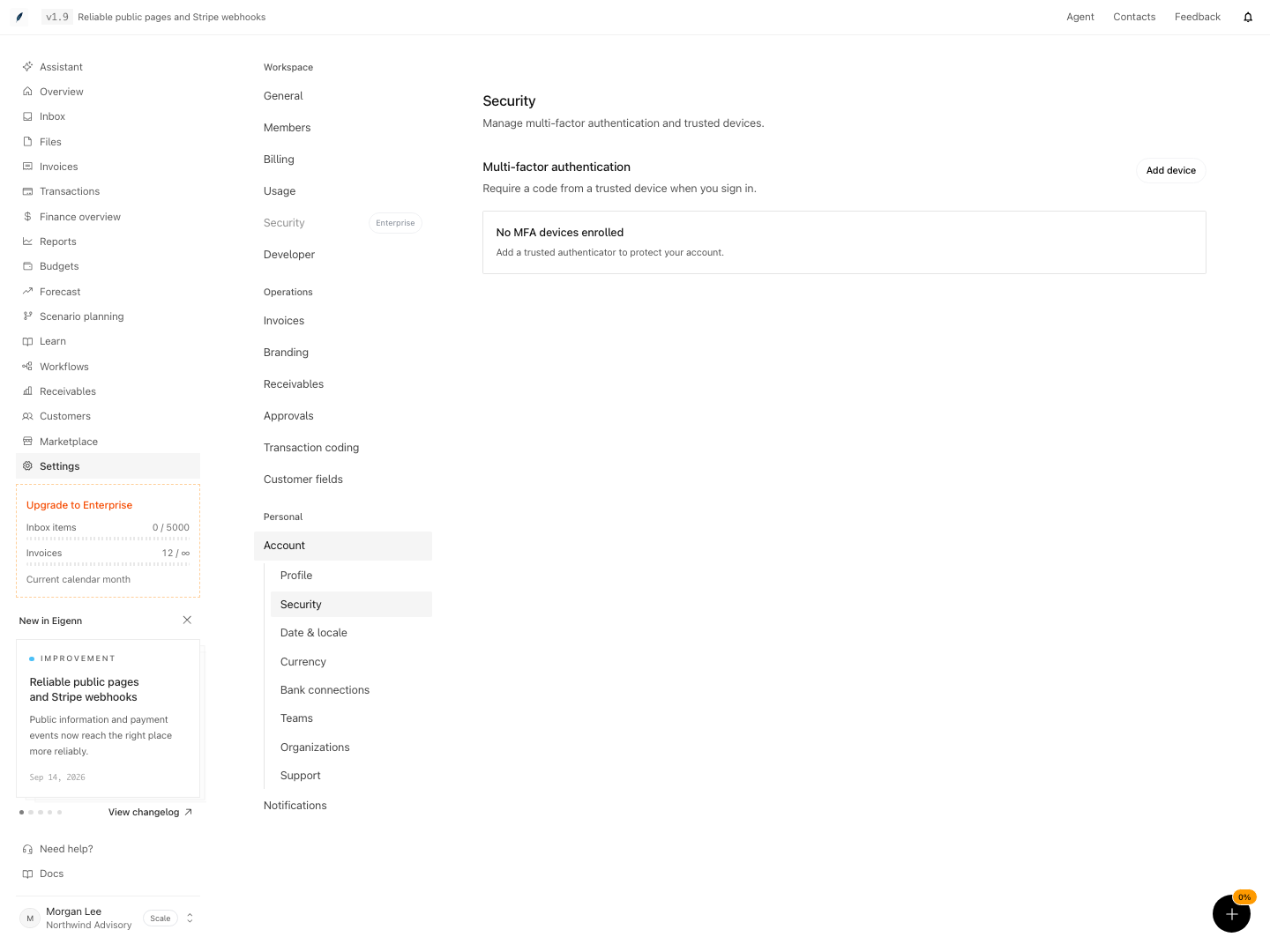
Account security before an authenticator device has been enrolled.
Shown with synthetic data in a local workspace.
Verification
- Note the exact error or stage displayed during your access attempt. If unsure, review the table under the workflow to match your observed message.
- For sign-in problems, retry with the previous method and ensure you receive the same or a different error; the process should behave as described (e.g., limit repeated attempts, show correct provider hint).
- For SSO errors, confirm with the organization owner that your domain and identity provider are configured, and as owner, verify the required setup steps in organization settings. Non-owners should not create duplicate workspaces.
- If prompted for workspace selection, check your email invitation matches your sign-in address and validate your role in team settings; switching workspaces should resolve the prompt.
- For MFA enrollment, follow steps to add the authenticator, confirm the code, and check your return to the requested page. Intentional rejection of invalid or replayed codes should match expected outcomes.
- When facing subscription or connection gates, wait for status polling and verify both Stripe and bank accounts are connected for the current workspace; "Finish setup" should complete when requirements are met.
- Permission errors must correspond to your actual role as shown in settings, with owners permitted writes and viewers restricted to reads.
- If access cannot be restored, escalate through the correct support channel and verify you receive guidance without being asked for secrets.