Inbox and Approvals
Capture receipts and invoices, reconcile them with transactions, and review assistant-proposed actions from one shared workspace.
Summary
The Inbox turns new financial documents into reviewable work and keeps receipts and invoices beside their transaction matches. Approvals gives a person the final decision before a proposed action runs.
What It Helps You Do
- bring receipts and invoices in from Gmail, the workspace email address, or a manual upload
- preview each attachment while you stay in the queue
- examine the extracted merchant, amount, date, and source context
- confirm a suggested transaction match or choose a transaction manually
- separate pending, suggested, matched, and unmatched work
- approve, reject, claim, or undo eligible assistant-proposed actions
The result is a shared queue. The document, its reconciliation state, and the next decision stay together.
Capabilities
You can collect documents automatically from Gmail or a workspace-specific email address, or add them manually. Each document can be previewed, have extracted details reviewed, and be matched to transactions with automatic suggestions or manual selection. Work can be filtered and its status updated; you may approve, claim, reject, or undo suggested actions through Approvals, and track the reconciliation and approval process directly in the shared queue.
Prerequisites
Prerequisites
Before you start:
- sign in to the workspace that owns the documents and transactions
- make sure that your role has write access for upload, Gmail connection, status change, and match confirmation
- connect or import transaction data before you expect useful match suggestions
- give Gmail access if you want Eigenn to scan a connected inbox
Concepts
The Inbox is a workspace-level queue combining document intake, review, and reconciliation alongside transaction matching. Documents can arrive from multiple sources and enter different workflow states: Pending, Suggested, Matched, or Unmatched. Approval is a manual check on assistant-proposed workflow actions. Item states and permissions ensure clear separation of duties and auditability for document handling.
Workflow
Find Inbox and Approvals
- Select Inbox in the primary sidebar for document intake and reconciliation.
- Open Approvals for proposed Assistant and workflow actions.
- In Inbox, select the gear button labeled Workspace settings to manage intake.
The document hub reached from Files → Workspace is a different page. Use it for the permanent file library and native Eigenn documents.
Bring Documents Into the Inbox
Connect Gmail
On an empty Inbox, a Connect Gmail card appears automatically.
- Select Connect your Gmail.
- Complete Google authorization.
- Return to Inbox.
- Open Workspace settings to confirm the account appears under Email Connections.
Eigenn scans connected Gmail accounts for receipts and PDF attachments. From Email Connections, you can:
- run a manual sync
- see when an account was last accessed
- select Reconnect when the account shows Disconnected
- remove an email connection when you do not want it to sync
- select Connect email to add another Gmail account
Use the workspace email address
Every workspace can show a unique address under Workspace settings → Email Address.
- Copy the address.
- Use it for online purchases and receipt delivery. You can also forward supported attachments to it.
- Return to Inbox and wait for the attachment to appear.
The workspace email address is specific to one workspace. Confirm the active workspace before you share it or save it in another system.
Upload files yourself
Select the Upload files button in the Inbox toolbar, or drag files over the inbox.
Manual Inbox uploads accept:
- JPG and JPEG
- PNG
- WebP
- HEIC and HEIF
- AVIF
You can upload up to 25 files at once. Each file must be 5 MB or smaller. The progress message asks you to keep the browser open until the upload completes.
Triage the Inbox
The left pane is the queue. The right pane shows the selected document, its status, and match controls.
Filter the queue
Use the quick filters above the list:
- All
- Pending
- Suggested
- Matched
- Unmatched
The search control also includes a Status filter with Matched, Pending, Suggested match, and No match. The filter is single-select: choose the active status again to clear it.
Use Sort inbox to choose Most recent, Oldest first, or Alphabetically. The item count at the right of the quick filters shows the current result set.
Understand the item states
| State | What it means | What to do |
|---|---|---|
| Processing | Eigenn still reads the file. | Keep the Inbox open. Wait for the row to resolve. |
| Analyzing | Eigenn examines the document and searches for a transaction. | Wait for a suggestion or final match state. |
| Pending | Eigenn found no match yet. | Leave it for a later match or choose a transaction by hand. |
| Suggested match | Eigenn found a possible transaction. | Examine the amount, date, name, and confidence. Then select Confirm or Decline. |
| Matched | The item has a link to a transaction. | Confirm the linked transaction. Then mark the work complete when this is applicable. |
| No match | The automatic search did not find a usable transaction. | Use Select a transaction for manual reconciliation. |
| Archived | A user moved the item out of the active workflow. | Change the status if it needs to return to review. |
Review one item
- Select an item in the left pane. You can also use the up and down arrow keys to move through the current list.
- Examine the preview, display name, amount, date of receipt, and current status.
- Confirm the File, Size, Type, Source, Amount, Received, and Date values in Details.
- Use the preview controls to zoom a PDF, download the file, or open it in a new tab.
- Use the status pill to set Pending, Matched, or Archived for a manual status update.
The item menu also gives Mark as done or Mark as unhandled, Retry Matching, Edit, Download, Copy Link, and Delete.
Copy Link on an Inbox item copies a link back to the shared Inbox record. A person who opens it still needs access to the workspace.
Reconcile a Document
Confirm a suggestion
When the Match section shows a suggestion:
- Compare the transaction name, date, amount, confidence, and any match explanation with the attachment.
- Select Confirm when the transaction is correct.
- Select Decline when it is not correct.
Eigenn uses these decisions to improve later suggestions. A confirmed item changes to Matched and shows the linked transaction in the Match section.
Match manually
When no suggestion is available:
- Select Select a transaction.
- Search by transaction name, or read the best matches that appear first.
- Use the filter button to show or hide transactions that already have an attachment.
- Select the correct transaction.
To undo the relationship, select the remove button beside the linked transaction. The document returns to an unmatched state. You can then reconcile it again.
Review Assistant Actions
Select Approvals to examine the actions that the assistant proposes. The pending count beside Approvals shows how many proposed actions now need attention.
Use the queue filters:
- Open
- Approved
- Done
- Rejected
- All
For each proposal:
- Select the row to open its details.
- Read the plain-language action, amount, customer or invoice context, tone, and cash-impact preview when available.
- Select Claim when you take ownership.
- Select Approve to let the action run, or Reject to stop it.
- Use Undo only when the completed action still shows that option. Undo has a time limit and depends on the action.
Approval is an explicit human gate. The success message Action approved — it will run shortly. confirms the approval. It does not confirm immediate completion. Use the Approved and Done filters to follow its state.
Behavior specification
Limits and Edge Cases
- Manual Inbox uploads have a limit of 25 files per batch and 5 MB per file.
- A forwarded email without a supported attachment does not create an Inbox item.
- Eigenn can ignore small non-PDF email images, such as logos and tracking graphics. They then do not become finance work.
- Eigenn reads the file and searches for a match asynchronously. A successful upload can appear before the analysis ends.
- No match does not mean that the document is invalid. It means that you must still select or import a transaction.
- A transaction can already have another attachment. Turn on the already-matched option only when you deliberately attach another document.
- Approval undo is not permanent. If Undo is absent, you cannot now reverse the action from this view.
- Search and quick-status filters change the working set. Clear them before you conclude that an item is absent.
Diagrams
Rendering diagram…
Screenshots
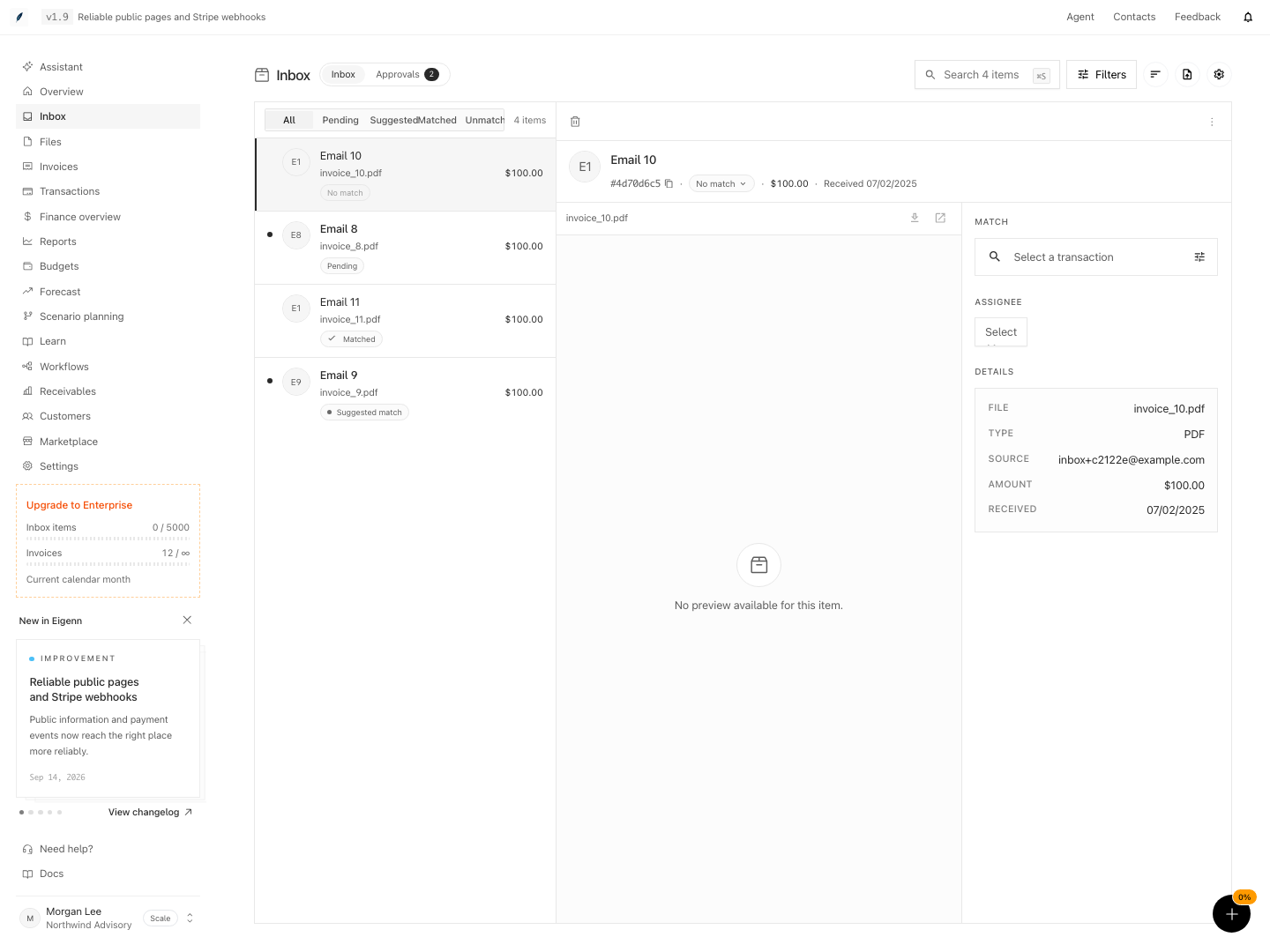
Shown with synthetic data in a local workspace.
Verification
Confirm the Result
An Inbox workflow is complete when:
- the expected receipt or invoice appears in the correct workspace
- the preview and extracted amount or date agree with the source document
- the Match section shows the intended transaction
- the queue row shows Matched or the manual status that your team expects
- an approved assistant action progresses from Approved to Done, or a rejected action appears under Rejected
For emailed intake, a manual sync can report either the number of new attachments or No new attachments found. Both are successful sync outcomes.
Troubleshoot
Gmail has a connection but nothing new appears
Open Workspace settings → Email Connections. Run a manual sync. Then read the completion message. If the account shows Disconnected, select Reconnect. Then complete Google authorization again. Confirm that the message contains a supported receipt or attachment.
Eigenn rejects a manual upload
Check the format. Keep each file at or below 5 MB. Split batches larger than 25 files. If Eigenn rejects a file as unsupported, convert it to PDF, JPG, PNG, WebP, HEIC, HEIF, or AVIF. Then try again.
The item is stuck on Processing or Analyzing
Refresh Inbox. Then reopen the item. If the preview is available but the match did not finish, open the item menu. Then select Retry Matching. If the state does not change, include the copied item ID and Inbox link when you contact support.
A suggested match is wrong
Select Decline. Then use Select a transaction. Check whether the correct transaction is outside the current transaction data. Also check whether it is hidden because it already has a match.
A matched item needs a correction
Remove the linked transaction from the Match section. Choose the correct transaction. Then confirm that the row returns to Matched.
Approvals is empty
The empty state means that you have nothing to examine. Assistant proposals appear here only when Eigenn queues an eligible action. Clear the approval filter or select All before you conclude that no historical proposals exist.
- Add a supported document to the Inbox using Gmail, workspace email address, or manual upload – If successful, the document appears in the Inbox queue.
- Preview the document and verify extracted metadata (amount, date, merchant) match the original file – The displayed data agrees with the uploaded document.
- Confirm or decline a match suggestion – The item's status updates to Matched (if confirmed) or returns to Pending/Unmatched (if declined).
- Manually select a transaction for a document without a suggestion – The document links to the selected transaction and the status updates to Matched.
- Use Approvals to review a pending proposed action, claim it, then approve or reject – The proposal moves to Approved or Rejected, and the action's progress can be seen via filter.
- Upload a file exceeding 5 MB or more than 25 files – An error message appears and the upload is rejected.
- Remove a linked transaction from a matched document and relink another – The document resets to Unmatched before reflecting the new match.
- Filter, search, and sort Inbox items and confirm results – Only items meeting filter and search criteria appear in the active list.