Budgets and Forecast
Create monthly plan targets, compare them with actuals, and model cash separately in Forecast.
Summary
Eigenn keeps budgets separate from forecasts:
- Finances → Budgets stores monthly expense or revenue targets.
- Forecast models future revenue, expenses, cash, and uncertainty from history plus explicit assumptions.
They support the same business decision, but one does not automatically rewrite the other.
Capabilities
Budget vs Actual
The summary defaults to the past 12 months. It also defaults to Expense when you select no type.
| Selected type | Favorable result | Unfavorable result |
|---|---|---|
| Expense | Under budget or On budget | Over budget |
| Revenue | Above target or On target | Below target |
Variance is Actual minus Budgeted.
Utilization is Actual divided by Budgeted. The bar stops at 100%. The numeric utilization can show the full calculated percentage.
When you select All types, the summary and pace sections still default to Expense. Select Revenue explicitly for revenue-target analysis.
Track and pace
Track & pace shows:
- current-month actual
- current-month budget
- projected end-of-month value
- On track, Projected over, or Projected under
- monthly Budget and Actual bars
- projected annual result compared with annual budget
Current-month projection extrapolates the month-to-date run rate across the full month. It does not model seasonality or probability.
The annual projection uses actuals through the current month and budget values for later months. It is a plan projection, not the cash-flow Forecast workbench.
Grid view
Select Grid for a category-by-month annual matrix.
The grid includes:
- one row per category plus Whole team
- January through December
- row, month, and grand totals
- previous- and next-year controls
- an automatically saved editable cell model
Enter a number or a formula in a cell. Eigenn saves the change after you commit the cell. A failed save shows Couldn't save budget changes.
Build-fast tools
| Control | Result |
|---|---|
| Copy across | Copies the selected source month's value across every month in each row. |
| Grow | Compounds each row monthly from the selected source month with the percentage that you enter. |
| Round to | Rounds every populated cell to the selected increment. |
| Seed from actuals | Copies prior-year category actuals into the selected year. Whole-team actuals are not seeded. |
| AI draft | Opens the same AI suggestion workflow as Suggest with AI. |
| Clear all | Removes all amounts and formulas for the active year and budget scenario. |
Build-fast controls replace formulas in the rows they change with literal values.
Data readiness and reconciliation
When your administrator enables budget data readiness, the Grid shows a Data readiness & reconciliation panel for the active year, currency, and budget version.
Select Run readiness checks before using prior-year actuals or relying on a budget for a controlled decision. The panel reports separate outcomes for manual budgeting, prior-year and seasonality seeds, actualization, forecasting, and approval. Each finding identifies its period, source, or mapping scope and links to the place where you can correct it.
- Blocked means you must correct the source data before that action.
- Needs override means an approval manager can record a reason and an expiry, or you can correct the warning and run the checks again.
- Ready means the current snapshot has no unresolved finding for that action.
Readiness snapshots expire after 15 minutes. Refresh a stale snapshot before acting. Seed from actuals is enforced on the server when the feature is enabled; changing the page locally cannot bypass a blocked or stale result. The history list retains prior evaluations, and warning overrides are retained in the audit log.
The checks cover source connection state and freshness, received and missing periods, duplicate landed periods, unmapped categories, unavailable currency conversions, unusual transaction signs, and reconciliation between a full-coverage transaction source and eligible transactions. The feature reports planning-data fitness; it does not certify financial statements or repair source-system accounting errors.
Rolling close and latest estimate
When your administrator enables rolling budget actualization, the Grid shows a Rolling budget close panel for a named, approved budget version. Run current readiness checks, choose the last closed month, select an open-period policy, and preview the result. The preview shows every period before and after the close plus an exact reconciliation of actualization, allocation, driver, manual, timing, and currency effects.
Creating the close makes a new version and sends it through the selected approval policy. The source plan remains unchanged. The entire new version is read-only while its approval is pending or complete. Closed cells in the new version display Actual · locked and reject normal editing. Depending on the selected policy, open periods remain unchanged, absorb the closed variance equally or proportionally, refresh formula-backed values from the realized run rate, or accept explicit manual latest-estimate values.
To correct a closed period, enter a reason and select Request reopen. The period stays locked until the request is approved and an approval manager selects Reopen period. Reopening invalidates the prior version approval; submit corrections for fresh approval before downstream use. The original close, request, reason, and reopen actor remain in the audit history. Active closed periods do not create point-in-time budget alerts; full-year projections continue to use the actualized values.
Formulas
Start a cell with an equals sign. Supported examples include:
=prev*1.05to grow from the prior month=avg(actuals)to use the row's loaded actuals=@revenue*0.1to reference another category row
A formula cell shows its computed value when unfocused. Formula errors appear in the cell, such as #DIV/0!. Cross-category references recompute the affected grid.
Change ledger and cell history
When the workspace has the budget change ledger enabled, authorized reviewers can select Change ledger in Grid. The ledger shows who or which service changed a value, the source, previous and new evaluated values, formulas, time, scenario, category, batch, and approval state.
Use the filters to review changes since a submission date, by source, category, approval state, or minimum absolute change. Export CSV downloads the same filtered evidence for an approval package. Exports are limited to the newest 5,000 matching events.
Select the history icon in a cell to inspect its newest-first typed, imported, calculated, and rollback provenance. Users without View audit log cannot open the ledger, history, or export and do not receive aggregate ledger values.
Users with Manage approvals can roll back the latest state represented by an event. A rollback never edits or deletes history: it creates a compensating event. If the cell changed after the selected event, refresh and review the newer edits instead of overwriting them.
Broad and individually material Grid or AI-draft changes require confirmation before they are written.
Named budget versions
The Grid scenario control separates:
- Base plan, the implicit default version
- named alternative budget scenarios
Use Scenario actions to:
- create New scenario
- Duplicate the active named scenario or base plan
- Rename a named scenario
- Delete a named scenario
Budget-scenario names must be unique within the team. You cannot rename or delete Base plan. When you delete a named scenario, Eigenn also deletes its budget cells.
These named budget versions are not the saved scenarios under Forecast. When you duplicate a budget scenario, Eigenn does not create forecast assumptions.
The active scenario applies to List, Grid, Budget vs Actual, Track & pace, plan-based projections, alerts, exports, and new budget records. The scenario and version name appear beside totals so screenshots and reviews retain their meaning.
Archived scenarios remain readable from saved URLs, but they are read-only. Switch to Base plan or duplicate the archived scenario to continue editing.
Governed contribution cycles
This organization-scoped workflow is off by default. When enabled, the Budget contributions section appears beneath the budget summary.
Owners can launch a cycle with native date controls and a CSV roster. Use these headers:
assignee_email,reviewer_email,slice_type,slice_key,category_slugs,due_date
Separate multiple category slugs with |. Supported slice types are
department, cost_center, entity, account_group, and saved_slice.
Roster emails must belong to active team members.
Each assignment moves through a visible lifecycle:
- The contributor selects Start, completes every required monthly line, and selects Submit.
- The reviewer selects Approve or enters a reason and selects Request changes.
- A contributor reopens requested work and submits a new immutable version.
- An Owner locks approved work. Reopening locked work requires a reason.
Previous submissions, review decisions, comments, mentions, links, reminders, and administrator overrides remain in Activity. Owners can approve submitted assignments or remind contributors in bulk; the result reports successes and failures separately. Configured deadline events create one targeted in-app notification and, when selected at launch, one email.
Configurable early-warning rules
This organization-scoped workspace is off by default. When enabled, Early-warning rules appears on Finances → Budgets.
An approval manager is an active team member whose role includes Manage approvals. They can build a draft for budget consumption, variance, pace, projected year-end variance, revenue shortfall, minimum cash, stale data, missing submissions, or a policy-specific threshold. Each rule records its exact currency, category, scenario, plan version, authorized dimension slice, fiscal calendar, timezone, threshold logic, recovery buffer, cadence, effective dates, quiet hours, cooldown, recipients, and channels.
Select Save draft, reopen that saved version, choose a historical window, and select Test on history. The preview shows the periods that would have fired, recoveries and data warnings, current eligible recipient count, and estimated deliveries. Preview does not send notifications; a successful preview unlocks Activate only for that exact version. Editing creates a new immutable draft that must be tested again; use Pause, Clone, or Retire without changing the version that produced an earlier alert.
Alert cards show a non-color status, triggering metric and comparator, source snapshot, plan context, rule version, evaluation time, assignment count, and event history. The alert link restores the permitted budget context and focuses the exact episode. Notifications contain no financial totals; signed-in access is checked again before showing evidence.
Use Acknowledge to accept ownership. Snooze needs an expiry and reason. Resolve needs a reason. A recovery inside the configured hysteresis buffer resolves the episode automatically; a later breach opens a new episode. Cooldowns prevent repeated delivery, and current team role and dimension grants are checked again on every scheduled delivery and direct access.
Missing data appears as a warning instead of being treated as zero. A zero denominator can still evaluate an absolute threshold while reporting that a percentage is unavailable. Quiet hours and cadence use the rule's business timezone, and projected-year evaluation starts at the configured fiscal-year boundary.
Data Freshness
- List, summary, pace, alerts, and plan-based forecast queries refresh after supported budget changes.
- Eigenn keeps grid data stable while you edit, and does not refetch it on window focus.
- A change of year, type, currency, category slice, or named budget scenario loads the data of that plan.
- Actuals depend on current recorded revenue and expense data.
- AI suggestion history depends on categorized spend in the last three months.
- Forecast reruns when its URL-backed inputs change; it does not read unsaved browser-only budget edits.
Prerequisites
Access and prerequisites
Budgets and Forecast need a team workspace.
- Owners and Members can create, edit, delete, bulk-update, and scenario-plan budgets.
- Viewers can read budget queries but cannot mutate team budgets.
- Forecast execution and saved-scenario changes are write-backed operations, so use an Owner or Member account.
- The workspace must also have Forecast turned on.
When your organization enables Budget contribution workflow, cycle rules take precedence over ordinary Member write access. Contributors can change only the category slices assigned to them while those assignments are editable. Submitted and locked slices are read-only. An Owner can make an exceptional correction only after entering a reason, which is preserved in cycle activity.
For reliable comparisons, keep transaction categories, revenue records, connected balances, and reporting currency current.
The Active plan context control is released per workspace. If it is not visible yet, the existing Base plan behavior remains unchanged.
Concepts
Budget concepts
Every budget record has:
- Type: Expense or Revenue
- Category: one transaction category or Whole team
- Amount
- Currency
- Month
- optional Note
The create sheet needs an amount greater than zero. A budget applies to one month.
Within one plan, the same team, category, type, month, currency, and budget scenario cannot have duplicate records. If an equivalent row already exists, edit it instead.
Active plan context
When enabled for your workspace, Active plan context is the single selection used by List, Grid, Budget vs Actual, Track & pace, budget alerts, AI-assisted budget creation, and plan export.
It shows the current workspace and controls:
- workspace
The selectable controls are:
- scenario and version
- fiscal year and date range
- currency
- category slice
Changing a control updates the page URL and refreshes every budget surface. Copying that URL opens the same authorized context for another signed-in team member. A context from another workspace is rejected instead of falling back to or exposing that workspace's plan.
Export plan downloads context-stamped CSV rows. The file includes workspace, scenario, version, fiscal-period, currency, and category-slice identifiers and names so reviewers can identify the plan without relying on its filename.
Forecast is a different model
Open Forecast to model:
- current cash from the accounts that are on
- historical revenue and expenses
- probabilistic P10, P50, and P90 outcomes
- revenue shock and growth
- customer cancellation
- headcount change
- expense surge and one-time expense
- collection delay, acceleration, and recovery
- FX sensitivity
The workbench offers 6-, 12-, and 24-month horizons and compares Baseline, Active plan, and Defensive plan.
Eigenn does not automatically pass budget cells into the Forecast engine. To make the forecast show the budget, translate the relevant plan changes into explicit Forecast assumptions.
Keep the records separate
| Record | What it is | What changes it |
|---|---|---|
| Actual | Recorded revenue, expense, transaction, invoice, or cash data | Sync, import, classification, and operational updates |
| Budget | Monthly plan target | New budget, Edit, Grid, AI suggestion, or budget scenario |
| Forecast | Modeled continuation of history | Forecast horizon, history, calibration, and current cash |
| Stress scenario | Forecast with explicit downside or upside drivers | Tune forecast, preset, load, or reset |
| Invoice insight | Invoice and collections analysis | The source invoice, payment, and receivables data |
| Shared view | Restricted widget or snapshot | A separate share workflow. Budgets and Forecast do not create it. |
Workflow
Create a monthly budget
- Open Finances → Budgets.
- Select New budget.
- Choose Expense or Revenue under Type.
- Select a category or Whole team.
- Enter Amount and Currency.
- Choose the Month.
- Add Note (optional).
- Select Create budget.
The confirmation says Budget created. The new row appears in List and contributes to plan-versus-actual summaries.
Use Edit to open Edit budget and Save changes. Use Delete to permanently remove a row.
List view
Select List to search and manage individual records.
Controls include:
- Search budgets, which searches category and note
- All types, Expense, or Revenue
- Edit
- Delete
Columns are Category, Type, Month, Amount, Note, and Actions.
When no record exists, select Create budget from the empty state. When filters hide all rows, select Clear filters.
Suggest budgets with AI
- Select Suggest with AI or AI draft.
- Check the detected spend from past months.
- Optionally enter Expected monthly income.
- Select Generate suggestion.
- Review each allocation and rationale.
- Deselect categories you do not want.
- Select Apply N budgets.
The suggestion:
- analyzes the last three months of categorized spend
- averages monthly spend by category
- creates selected allocations as Expense budgets in the active plan context
- uses the active currency
- needs a transaction category that matches
It does not create Revenue budgets, future-month budgets, or Forecast drivers.
If no categorized spend exists, the sheet says No categorized spend found in the last 3 months. You cannot generate a suggestion.
Eigenn skips a current-month category budget that already exists. Eigenn also skips a category name that does not match. Check the warnings and every allocation before you apply them.
Behavior specification
Eigenn separates budgets from forecast models. Budget records must be unique within scenario/month/category/type/currency context. Actuals and budgets are kept current via separate workflows. Only Owners/Members can edit or write budgets and forecasts. AI suggestions respect current spend and do not duplicate existing category-month records. Grid view allows formulas, tracks changes, and maintains data integrity with audit and rollback controls. Contribution and approval status for assigned slices is rigorously enforced, and all critical actions are logged. Early-warning rules only activate when designed criteria and test previews pass, and do not expose information to unauthorized users.
Diagrams
Rendering diagram…
Screenshots
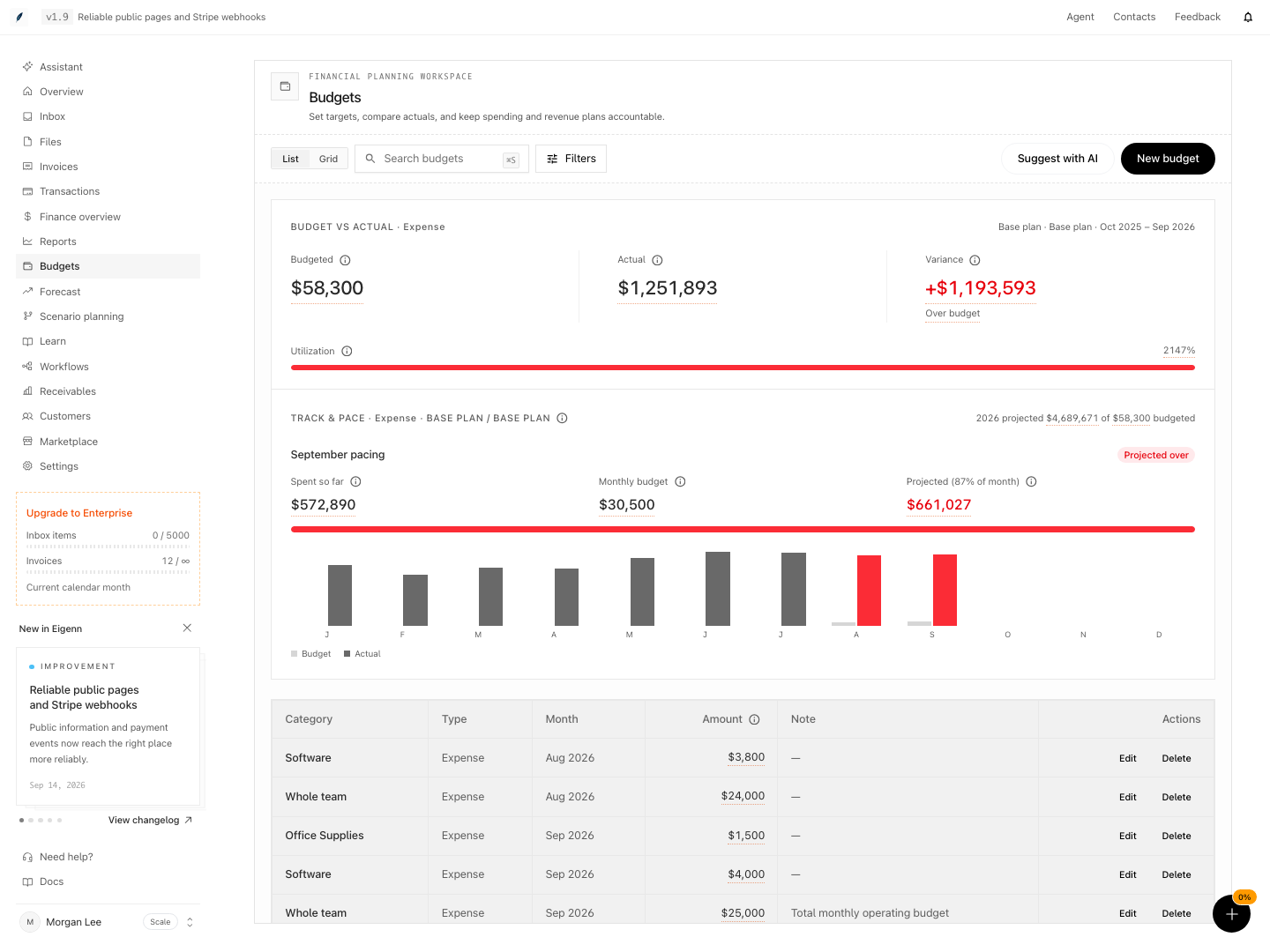
Budget targets, actual spending, variance, pacing, and category rows.
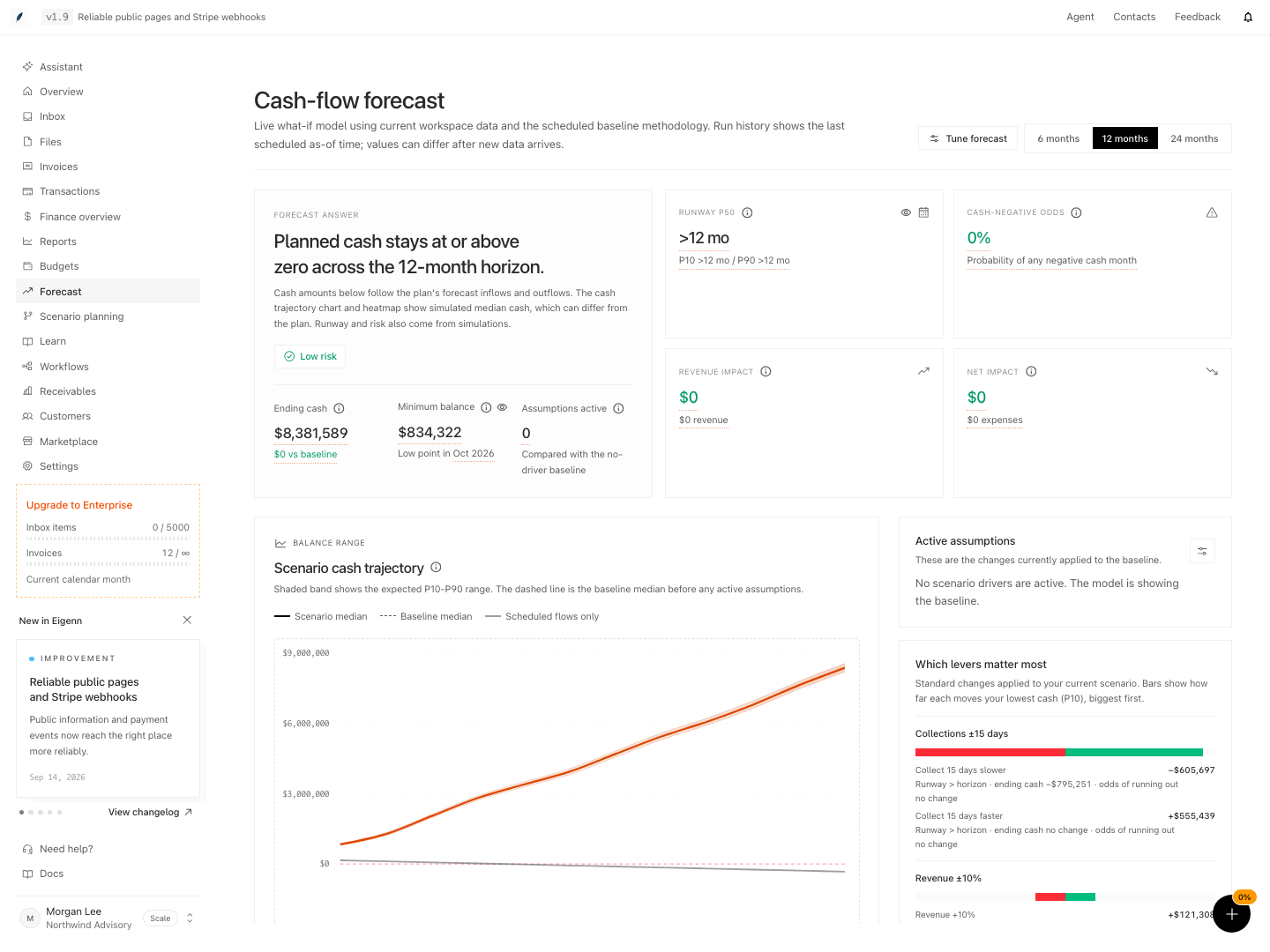
Cash-flow forecast with minimum balance, runway range, active assumptions, and scenario cash trajectory.
Shown with synthetic data in a local workspace.
Verification
Confirm the Result
A budget is ready for review when:
- you selected the correct type, category, month, and currency
- Budgeted and Actual use the intended date range
- you selected Expense or Revenue explicitly
- Track & pace reflects the current month
- Grid totals match the intended plan
- formulas have no visible errors
- the active budget scenario is the version you intended to edit
Troubleshoot
The summary shows Expense
Select Revenue explicitly. All types leaves the summary and pace sections on their Expense default.
The AI suggestion is empty
Categorize spend. Make sure that the last three months contain data in the active currency.
The AI suggestion skipped categories
The category can already have a current-month budget. The generated name can also be different from every workspace transaction category.
Grid changes disappeared
Look for Couldn't save budget changes. Also confirm that the year, budget type, currency, and named scenario did not change.
The plan is read-only
The selected scenario was archived. Its saved URL still works for review, but create, edit, delete, grid, and AI-apply actions are blocked. Switch to Base plan or duplicate the archived scenario.
Seed from actuals reports no data
The selected prior year has no usable category actuals. Eigenn does not seed whole-team actuals.
Forecast does not match the budget
This behavior is correct unless history and explicit Forecast assumptions represent the plan. Eigenn does not automatically import budgets as forecast drivers.
A Viewer cannot edit
Budget changes and forecast runs need Owner or Member write access.
- Create a budget entry and verify it appears in both List and Grid views and is reflected in plan summaries.
- Edit a budget and confirm the changes are visible in the updated lists and calculations.
- Delete a budget and ensure it is removed from all views and summaries.
- Apply an AI draft and check that only expenses (not revenues or unmatched categories) are suggested and created.
- Switch scenarios and confirm that each scenario has its distinct set of budgets; archived scenarios are read-only.
- Approve or request changes in a contribution cycle and confirm that approvals and comments are logged for the correct slice; check activity for audit events.
- Set an early-warning rule, test on history, and verify preview results before activation; ensure that only notifications for matching business logic are sent.
- Open a Forecast and confirm that budget changes do not appear automatically in forecast models.
- Run Data Freshness checks and confirm that readiness or blocking status matches the actual data state.
- Review the grid change ledger and history for any edited cell, ensuring each event is logged with timestamp and user or service details.
Related
- Rolling Budget Close explains version approval, closed periods, corrections, and reapproval.