Monitor and Recover Workflows
Triage pending, running, waiting, failed, and canceled runs, and keep the audit evidence without duplicate work.
Summary
Workflow recovery starts with the execution record. It does not start with a change to the definition or a new run of it. Preserve what happened. Then find the state of the run: queued, active, waiting, failed, or canceled. Only then choose a recovery action.
Capabilities
Monitor workflow execution states, examine run details and failure evidence, resume waiting executions with checkpoint controls, deploy updated workflow definitions with validation, and ensure external effects match intended outcomes as observed through run evidence.
Prerequisites
Before You Start
- Use a Starter or higher workspace.
- Use a workspace owner for write actions.
- Know whether the workflow can send messages, change invoices, apply fees, notify the team, or call another system.
- Do not create a replacement run until you rule out an active run or a run that retries automatically.
Concepts
Common Recovery Mistakes
Repeated clicks on Run
Each editor click can create a new execution. Refresh history before you start another run.
A change to the current node of a run that waits
Resume loads the current active definition. A changed or removed node can make the saved execution snapshot incompatible with the graph.
Deactivation as a way to “pause” execution
Deactivation stops new manual runs and makes resume jobs skip. It is not an execution-pause control.
Confusion between the pause badge and the execution state
Pause and execution records are separate. A Resumed pause enqueues continuation, but the run can still fail at a later step. A Canceled pause closes the checkpoint and does not advance the run at all. Read the execution state, not only the pause badge.
Trust in a background retry to fix business data
Retries can repeat technical work. They cannot decide if a message, fee, or invoice change is still correct. Check the provider state before another run.
Workflow
1. Find the Execution
- Open Workflows → Executions.
- Filter by workflow and state.
- Choose Refresh.
- Open the run by its workflow name or definition ID.
- Record the full execution ID from Execution Replay.
The list shows at most 50 runs that match, and it has no pagination control. If the run is older, record the workflow and the approximate time for support. You can also use an authorized integration that has execution pagination.
2. Read the Evidence Before You Act
In Execution Details, read these items:
- Execution state and trigger
- Start time and duration
- Execution Failed, when present
- Action Required, when present
- The current node on Execution Graph
- Ordered steps in Execution Replay
- What this run was working on, including the resolved customer or invoice
- Raw trigger data, Raw execution context, and Raw result in that card
Preserve the failed step’s node ID, error, input, and output. Redact secrets before you share raw JSON.
3. Choose the State-Specific Response
Pending
Pending means that Eigenn created the execution record but did not start the work.
- Refresh one time after the queue delay.
- Do not click Run again immediately. The editor manual action has no idempotency key.
- If the run stays pending, escalate with the execution ID, the workflow ID, and the queued time.
Eigenn sets the execution-start job for a maximum of three worker tries. This page does not show the state of those tries.
Running
- Check if the detail page says live updates are on, paused, or off.
- Reload to fetch persisted steps if realtime is unavailable.
- Confirm that the current node and the most recent step timestamp change.
- Use Stop only from the editor that now tracks that run, and only when you intend to cancel.
The history and detail pages do not have a general cancellation button.
Waiting
Find the current node first.
- Wait uses a calculated time and scheduled resume.
- Pause creates a human checkpoint.
- Subflow polls and a paused terminal outcome can also produce Waiting.
For Action Required, read the checkpoint message and the expiry. Resume Workflow writes your payload into the execution context, marks the pause resumed, and enqueues the continuation job. A checkpoint that is already resumed, expired, or canceled returns that state and starts nothing. Refresh and check the execution after every pause action.
Do not deactivate a workflow that must resume. Resume jobs skip inactive definitions. Also do not change or delete the current node while a run waits. The continuation loads the current definition.
Failed
There is no manual Retry button in the web history or detail page.
- Preserve the original failure.
- Find if the error is configuration, data, provider, permission, or transient infrastructure.
- Examine newer executions before you assume that recovery did not already happen.
- If the definition needs a major change, account for other runs in the Waiting state before you deactivate it.
- Correct the smallest responsible block or connection.
- Wait for Saved.
- Open Deploy.
- Clear every failed validation check.
- Deploy the corrected workflow.
- Start one new test run.
- Check the new execution and the external side effect.
The worker has automatic job retries and a dead-letter recovery path. Eigenn does not show those tries as customer controls. The current configuration permits a maximum of 25 resume tries and a maximum of three dead-letter retries. The exponential delays start at one hour. Treat this as implementation behavior and not as a recovery SLA.
Canceled
Canceled executions do not resume. Find who or what canceled the run. Confirm if any earlier side effects completed. Then create one new run only if you still need the operation.
Cancellation of a Pause record is not the same as cancellation of an execution.
Completed with an unexpected outcome
A Completed state means that the engine reached its successful terminal outcome. It does not independently prove that every external provider shows the intended business result.
- Expand each relevant step.
- Compare input and output with trigger data and context.
- Check the email, SMS, invoice, fee, task, or integration state in its authoritative system.
- Correct the workflow before another trigger can reproduce the issue.
4. Stop Duplicate Recovery Runs
The editor manual Run action sends no idempotency key. One click must correspond to one intended run.
For an integration that submits workflow trigger requests:
- Supply an idempotency key between 1 and 128 characters
- Reuse the same key for retries of the same logical request
- Choose a new key for a genuinely new business action
- Remember that the key scope includes the team and the workflow
The queue returns the same job and execution for a reused key. This is also true after the job completes.
Human checkpoints use a separate resume key. Let the engine generate it. Use your own value only when your integration can guarantee a unique value for each checkpoint.
5. Confirm the Recovery
A recovery is complete only when:
- The corrected definition says Saved
- Deployment validation has no failures
- The intended workflow is active
- Exactly one replacement execution exists
- Its trigger data matches the intended record
- The replay reaches the expected terminal step
- You confirmed the external side effect
- The original failed or canceled execution stays preserved as evidence
Behavior specification
Escalation Checklist
Give these items:
- Workspace and workflow name
- Workflow ID
- Execution ID
- State and trigger
- Approximate start time
- Current or failed node ID
- Exact visible error
- Whether live updates were on
- Whether the definition changed while the run waited
- Pause resume key when it is relevant
- Expected result and actual result
Do not include passwords, API keys, access tokens, or unredacted customer data.
Diagrams
Rendering diagram…
Screenshots
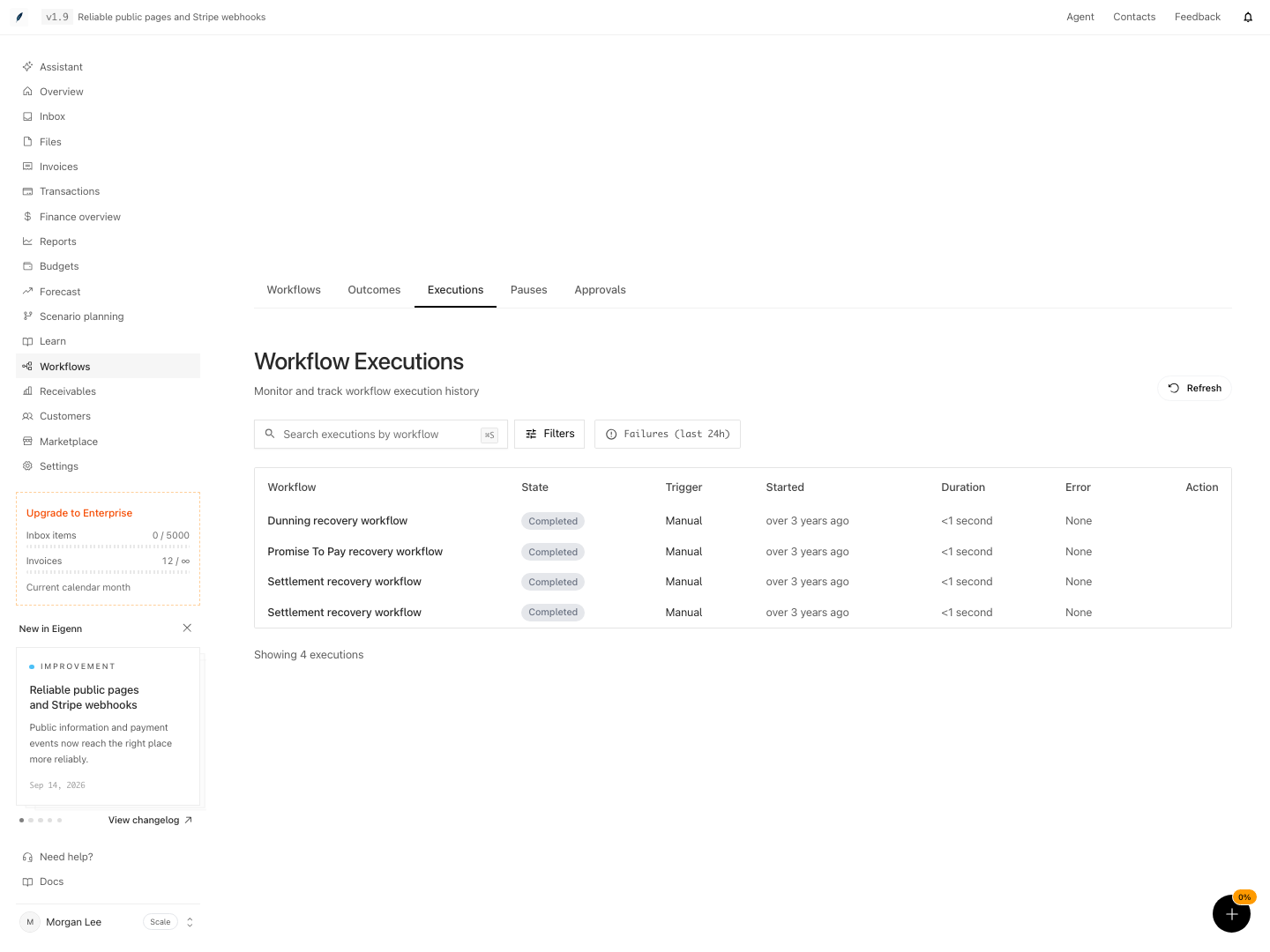
Shown with synthetic data in a local workspace.
Verification
- Open Workflows → Executions and locate the appropriate run. You should see at most 50 matching items without pagination, unless your integration supports it.
- Read the execution state, trigger, current node, steps, and evidence within Execution Details to confirm accurate records of the run.
- If recovering a waiting execution, perform Resume Workflow and refresh to confirm the execution has advanced and is no longer waiting. Check that run context and checkpoint data reflect your action.
- When deploying a fixed workflow definition, ensure the status reads Saved and that deployment validation reports no failed checks before proceeding.
- After starting a replacement run, review that a new execution exists, its trigger data matches the intended operation, and its replay indicates the expected terminal outcome.
- For each failed or completed run, verify the corresponding external business result (such as invoice, task, or notification) in its authoritative system, and confirm it matches the workflow intent.
- Ensure that no duplicate recovery or repeated manual runs appear in the executions list unless genuinely required.