Organize and Share Documents
Build a useful Vault hierarchy, save reusable views, and share uploaded files or native Eigenn documents with the right link type.
Summary
This workflow keeps documents easy to find before you share them. It covers physical folders, tags, smart folders, file moves, download links that expire, and published native documents.
Capabilities
Users can create and manage folder structures, upload and move files, tag documents for retrieval across directories, define and save smart folders based on document metadata, share files with expiring download links, and publish native Eigenn documents as live pages. The system also enables library maintenance through review queues, duplication checks, and bulk actions.
Prerequisites
Prerequisites
- Sign in to the workspace that owns the files.
- Use a role with write access to create folders, edit files, manage tags, or publish documents.
- Upload the source files and wait for the upload phase to finish.
- Decide whether the recipient needs a downloadable uploaded file or a live native document.
Concepts
Understand the Two Document Areas
- Select Files in the primary sidebar for uploaded files, folders, search, and document details.
- Select Files → Workspace for native document creation, recent documents, document intelligence, and the Workspace library.
- Inbox is the receipt-intake and reconciliation queue. Approvals is the proposed-action queue. Neither is the Files document hub.
Workflow
1. Create a Folder Structure
- Select Vault.
- Select New folder.
- Enter a descriptive Folder name, such as a period, an entity, or an operational purpose.
- Select Create folder.
- Open that folder.
- Select New folder again when you need a nested level.
Folder names must be unique in their current location. Use a shallow structure that another teammate can understand. The teammate does not need to know who created it.
Examples:
2026 → Q3 → Bank statementsVendors → Software → RenewalsBoard → Monthly packs
2. Upload Into the Intended Location
- Open the destination folder.
- Select Upload, or drag the files into the open folder.
- Keep the tab open while Eigenn shows the upload progress.
- Wait for the files to appear in the folder.
- Open View details.
- Confirm File Information → Status.
Each Vault upload can contain up to 25 files, each 100 MB or smaller. When you upload inside a folder, the new files stay in that location from the start.
3. Rename or Move Files
- Open a file’s action menu.
- Select Edit.
- Update Name when necessary.
- Under Folder, choose the new destination or Vault root.
- Select Save.
The success message File updated confirms the change. If the destination already has the same file name, Eigenn shows A file with this name already exists in that folder. Choose another name or another destination.
4. Add Tags for Cross-Folder Retrieval
Folders answer “where does this live?” Tags answer “what kind of work is this?”
- Open the file action menu.
- Select View details.
- Find Tags.
- Select Select tags.
- Choose a tag that exists already, or create a new tag.
- Remove an assigned tag when it no longer applies.
Return to the Vault. Select a visible tag to filter by it. Tags work across physical folders, so they are useful for concepts such as renewal, needs-review, tax, or board.
If you delete an option from the tag picker, Eigenn removes the shared tag itself. Remove the tag assignment from the selected list when you want to detach it from one document only.
5. Save a Smart Folder
Use smart folders for recurring review sets that depend on metadata rather than location.
- In Ask or search across your files, open the filter button.
- Apply one or more saved-view filters: text search, Date, Tags, Extraction status, Period, Document type, Counterparty, amount range, or Currency.
- Enter a name in the field below the search control, or keep the generated filter summary.
- Select Save smart folder.
- Select the saved smart folder to restore the same filters later.
A smart folder does not move or copy a file. Select its x to delete only the saved view.
6. Choose the Correct Method to Share
Share an uploaded file as a download
Use this method for PDFs, images, spreadsheets, and other uploaded files.
- In Vault, open the file action menu.
- Select Copy link.
- Wait for Link copied.
- Send the copied link to the intended recipient.
The link opens a branded Download File page. The page names the workspace that shares the file. The link expires after seven days. Create a new link when the old link expires.
Use Download when you must send the file through another approved channel without a Vault link.
Publish a native Eigenn document
Use this method for a document created with Files → Workspace → New document.
- Open the native document.
- Examine its title and content.
- Select Share in the document bar.
- Select the Publish tab.
- Select Publish.
- When the page shows the preview URL, copy it or select View site.
The editor shows This page is live after publication. To stop the publication, return to Share → Publish. Then select Unpublish.
You publish a native page. You copy a link to an uploaded file. These are different operations:
| Need | Use | Link behavior |
|---|---|---|
| Let someone download an uploaded file | Vault file menu → Copy link | Secure download link that expires after seven days |
| Share a live native document | Document → Share → Publish | Published preview that remains live until unpublished |
| Send a teammate to an Inbox record | Workspace item menu → Copy Link | Internal workspace link that needs workspace access |
7. Confirm the Share
For an uploaded file:
- Open the copied link.
- Confirm the page says Download File.
- Check the workspace name, the file name, and the file size.
- Select Download File.
- Confirm that the downloaded file opens correctly.
For a native document:
- Confirm the editor says This page is live.
- Select View site.
- Examine the title, cover, icon, and content in the published view.
- Copy the URL from Share.
- Send that exact URL.
8. Maintain the Library
Use a regular cleanup pass to keep the Vault trustworthy:
- Open Files → Workspace.
- Examine Duplicate files.
- Confirm which copy you must keep.
- Select Archive copies.
- Examine Review queue before you select Verify visible or Repair failed.
- Resolve Suggested matches with Link or Dismiss.
- Use Audit trail to confirm important extraction corrections.
- Use Export CSV when you need a structured offline review.
When a folder needs cleanup, its menu gives Rename and Delete. In the delete dialog, Delete everything inside permanently removes nested files and folders. Leave it off when you do not want that outcome.
Behavior specification
Confirm the Result
The workflow is complete when:
- files appear in the intended physical folders
- tags retrieve the same files across folder boundaries
- saved smart folders restore their expected filters
- renamed and moved files appear with the intended name and location
- uploaded-file links open the correct Download File page
- native documents show This page is live and open through View site
- obsolete native documents are no longer live after Unpublish
Limits and Edge Cases
- Folder names are unique only in the same location. The same name can exist in another location.
- Smart folders save supported filters and do not create storage containers.
- A smart folder does not store the Semantic search toggle.
- Uploaded-file links from the current file action menu expire after seven days.
- Eigenn disables Copy link for an item that has no stored file path.
- You must publish a native document before you share its preview URL.
- Unpublish is a separate operation from delete and archive.
- If you delete a shared file, Eigenn does not keep its download link.
- If you delete a file attached to transactions, those records can change. Read the attachment warning before you confirm.
- Verify visible, Link visible, Dismiss visible, and Archive copies are bulk actions on the items that Eigenn shows now.
- The intelligence sections in Files → Workspace remain hidden when no relevant data exists.
Diagrams
Rendering diagram…
Screenshots
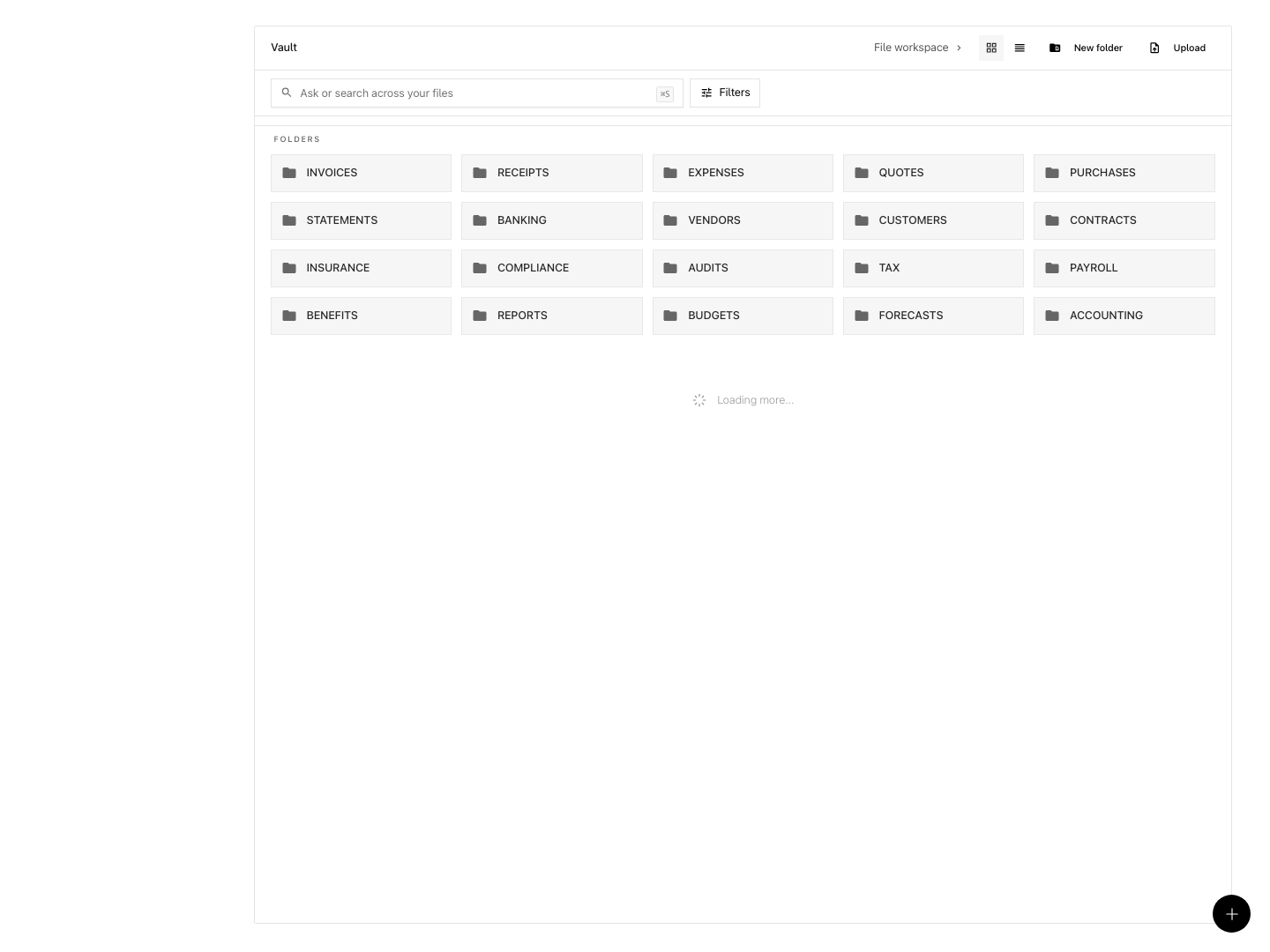
Shown with synthetic data in a local workspace.
Verification
Troubleshoot
Copy link is unavailable
Confirm that the item is an uploaded file with a stored path. Open View details and check Storage Path. Native Eigenn documents use Share → Publish instead.
A download link expired
Open the file menu and select Copy link again. Send the new URL. Eigenn does not renew the previous link automatically.
A published document does not open
Open the document and confirm This page is live. In Share → Publish, select View site. Copy the URL that the page shows. If the published view still does not load, include the document title and the published URL in a support request.
The wrong file appears in a folder
Open its action menu. Select Edit. Choose the correct Folder. Select Save. Use Vault root when the file must not be in a folder.
A smart folder appears empty
Select the smart folder and examine the active filter chips. Remove date, amount, status, tag, or currency filters that are too narrow. A smart folder shows the current metadata. Documents can enter or leave the result when their fields change.
You cannot delete a folder
The folder contains nested content. Examine the contents first. Turn on Delete everything inside only when you want permanent removal. If you do not want permanent removal, cancel the dialog. Then move or keep the nested items.
- Upload a file into a selected folder; confirm it appears in that location after the upload completes.
- Assign a unique name to a folder; attempt to create another folder with the same name in the same location and check for an error message.
- Apply a tag to a document; filter by that tag and confirm the document appears in the search.
- Move a file to a different folder and verify its new location and updated name if changed.
- Create a smart folder using filters; select the smart folder and confirm it consistently retrieves the filtered documents.
- Generate a download link for an uploaded file, open it before expiration, and confirm correct workspace, file name, and download function.
- Publish a native document, open the live preview, and verify the "This page is live" message and accessibility via the specific link.
- Unpublish a document and confirm its live page is no longer accessible.
- Attempt to use the "Copy link" action on an item with no stored file path and confirm the action is unavailable.
- Delete a folder containing items without using the "Delete everything inside" option and ensure nested items are not removed.