Build and Review a Forecast
Establish the cash baseline, add explicit assumptions, and interpret uncertainty without a mix-up of forecast and actuals.
Summary
This guide shows you how to build a decision-ready cash-flow forecast under Forecast.
Capabilities
Eigenn allows users to generate scenario-based cash forecasts, adjust for payment behavior, apply various assumptions across revenue, team costs, expenditures, timing, and FX variables, and interpret output metrics such as ending cash, runway, and risk odds. Users can save and revisit multiple scenarios for ongoing planning needs.
Prerequisites
Before You Start
- Use an Owner or Member account.
- Confirm that the workspace has Forecast turned on.
- Connect the bank accounts that represent available cash, then turn them on.
- Sync enough revenue and expense history to establish a baseline.
- Decide which currency and time horizon the decision needs.
The Forecast workbench is not a public report. It uses workspace data. You must have workspace access.
Concepts
Data freshness and persistence
- Eigenn reruns the live baseline and the active scenarios when the horizon, the assumptions, the reporting inputs, or the payment-behavior overlay changes.
- A live workbench run does not save the forecast into a permanent scenario definition.
- Save current stores the definition.
- Run on a saved scenario refreshes the latest result summary of that row with the current history.
- Run history shows the forecast-run records that the workspace returns. These records can include scheduled baseline runs and scenario runs.
- The Forecast page has no universal timestamp for the source sync. Confirm the bank connections and the transaction history separately.
Keep forecast separate
- Forecast values are not observed actuals.
- A saved scenario is not a budget scenario.
- Eigenn does not import a budget into Forecast automatically.
- Invoice behavior can adjust when Eigenn expects the collections. Forecast does not update invoice status.
- A copied forecast URL keeps the assumption state for a teammate who has access. The URL is not a public share.
Workflow
1. Open the baseline
- Select Finances.
- Select Forecast.
- Select 6 months, 12 months, or 24 months.
- Wait until Eigenn loads Ending cash, Runway, Risk, and Net impact.
Eigenn computes these values automatically:
- A baseline with no drivers
- The current active plan
- A defensive comparison plan
With no assumptions, the active plan uses the baseline result.
2. Confirm the inputs
Before you change a lever:
- Confirm that Ending cash and Minimum balance show expected values.
- Confirm the currency that Eigenn shows.
- Review Scenario cash trajectory.
- Confirm Assumptions active is 0.
- Review the model-health panel for the revenue and expenses series.
Each series reports one state:
- Calibrated: the weekly backtest completed within the last 14 days.
- Calibration stale: the backtest completed more than 14 days ago.
- Calibration failed: the latest backtest did not complete.
- Insufficient history: the backtest cannot evaluate the series.
- Not calibrated: no backtest record exists.
A calibrated series also reports MAPE, sMAPE, band coverage, RMSE, holdout months, and the uncertainty scale. Read band coverage before you rely on P10 and P90.
Do not treat a calibrated band as a guarantee. It states how Eigenn evaluated the model, not certainty.
3. Decide whether to model payment behavior
Turn on Model real payment behavior when expected collections must show the payment lag and the promise reliability that Eigenn observes.
When you use the adjustment, the page shows the invoice count, the total shifted cash, and the reliability haircut.
Leave it off when you need the unadjusted baseline that uses dates for comparison. This control changes when Eigenn expects the collections. It does not change invoices or bank records.
4. Add assumptions
Select Tune forecast to open Scenario assumptions, then select a group:
- Revenue: Revenue shock, Revenue growth, Clients cancelling
- Team: Headcount change, cost for each hire/month, start, and ramp
- Spend: Expense surge and One-time expense
- Timing: Collections delay, Collections acceleration, Recovery rate change
- FX: FX shock currency, percentage, and Sticky or Spot mode
Set only the drivers that the decision needs. The page refreshes the active plan automatically after a short debounce. The live scenario has no run button.
Use Quick presets to start from a known set, then refine the drivers:
- Revenue drop
- Expense spike
- Hiring plan
- Slow collections
- Collections recovery
- Defensive cost plan
- Severe stress test
When you select a preset, Eigenn replaces the current assumption set.
5. Confirm the active assumptions
Confirm that:
- The N active badge matches the intended number of drivers
- Active assumptions lists every driver
- Percentages have the correct sign
- Start offsets and durations are correct
- Headcount and monthly cost are both present
- One-time expense has an amount and a date
- FX has a three-letter currency and the related exposure
Use Reset for one lever or Reset all assumptions for a clean baseline.
6. Read the forecast answer
The headline tells you if planned cash stays at or above zero. If it does not, the headline shows the plan's first negative-cash month. Planned cash applies forecast inflows and outflows once. The cash chart and heatmap show the median of simulated outcomes, which can differ from the plan. Runway and risk also come from simulations.
Review these together:
| Metric | Interpretation |
|---|---|
| Ending cash | The planned balance at the end of the active scenario, and its difference from the baseline plan. |
| Minimum balance | The lowest planned balance, including starting cash, and its assigned month. |
| P10 in the Runway P50 hint | Conservative runway outcome. |
| Runway P50 | Median runway outcome. |
| P90 in the Runway P50 hint | More favorable runway outcome. |
| Cash-negative odds | The probability that at least one month has negative cash. |
| Revenue impact | The revenue difference between the active scenario and the baseline. |
| Net impact | The difference in net cash flow between the active scenario and the baseline. |
>N mo means that no breach happened in the N-month horizon.
Risk bands are:
- Low: below 10%
- Moderate: 10% to below 25%
- High: 25% to below 50%
- Critical: 50% or more
7. Examine the schedule and the tradeoffs
Use:
- Cash runway decision timeline for the first Watch, High, and Critical points
- Scenario comparison matrix for Baseline, Active plan, and Defensive plan
- Cash pressure by month for cash-negative and net-negative odds
- Revenue, expenses, and net for the projected movement in operations
- Scenario delta vs baseline for the monthly change that the assumptions cause
- Risk odds by month for tail risk
- Scenario variance by month for inflow, outflow, net, and cash deltas
The variance table shows at most the first eight monthly rows. Use the charts for the full horizon.
8. Save a reusable scenario
- Engage at least one assumption.
- Select Save current.
- Enter a name of up to 200 characters.
- Select Save.
- Select Run on the saved row to recalculate it with the latest history.
Load restores the saved drivers and horizon into the live workbench. It does not merge them with current levers.
The Delete action deletes the saved scenario.
When you save a scenario, you do not change a named budget version under Finances → Budgets.
9. Confirm the forecast
A reviewable forecast has:
- The expected cash at the start, from a connected account
- A horizon that covers the decision
- The baseline and the active plan in the same currency
- Explicit assumptions that you confirmed
- A review of P10, P50, P90, and the breach probability
- A known first month of pressure
- A response or mitigation that you compared with the downside
- A saved name when the team must revisit the case
Behavior specification
Troubleshoot
Not enough history to forecast
Confirm the connected accounts and the recorded revenue and expenses. Expand the source reporting history before you depend on the model.
The workspace does not have Forecast turned on
Confirm that the workspace has Forecast access. Use an Owner or Member account. Viewers cannot start a forecast run.
Values change but Assumptions active stays at zero
Confirm that the lever is not neutral. A one-time expense needs an amount and a date. An FX shock needs a currency and a percentage that is not zero.
Saved result is stale
Select Run on the saved row. Load restores the inputs. Load alone does not update the saved summary of that row.
Runway differs from Reports
Reports shows the runway at the current burn. Forecast uses a probabilistic model of revenue and expenses, plus the active assumptions. Confirm the period, the currency, the cash accounts, and the driver state before you compare them.
Diagrams
Rendering diagram…
Screenshots
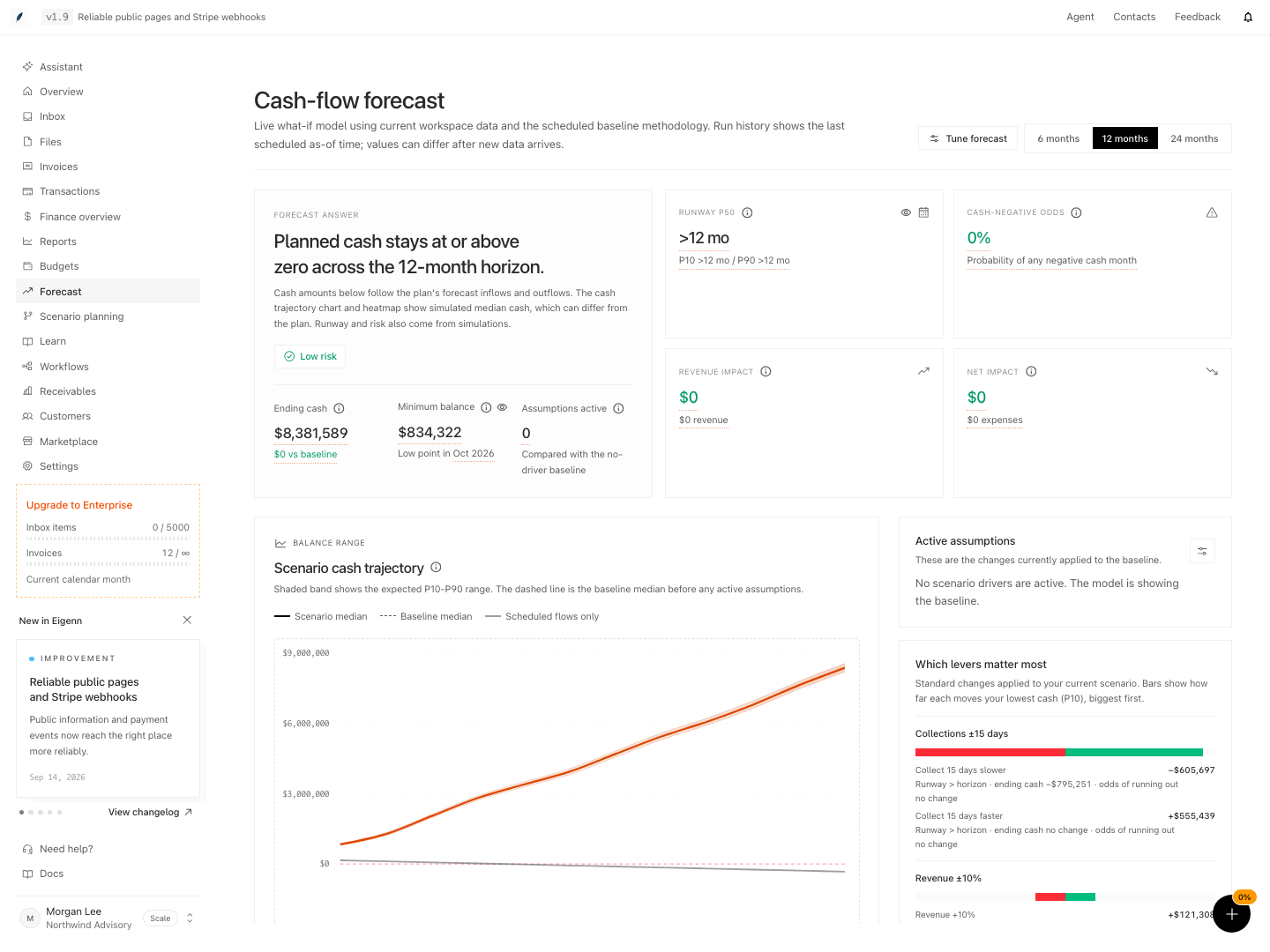
Cash-flow forecast with minimum balance, runway range, active assumptions, and scenario cash trajectory.
Shown with synthetic data in a local workspace.
Verification
- Log in with Owner or Member permissions and confirm Forecast loads without an access warning.
- Ensure all relevant bank accounts are connected and show recent transactions: Expected balances appear and no connection warnings show.
- Open a scenario, apply at least one assumption, and confirm outputs such as Ending Cash, Runway P50, and Net Impact update within seconds.
- Toggle payment modeling and check for changes in cash timing and invoice reliability information.
- Save a scenario, modify drivers, and reload the saved scenario: Confirm that original saved settings are restored after loading.
- Compare Forecast outputs to Reports for the same currency and period: Understand that values may differ due to model assumptions.
- Attempt to run Forecast as a Viewer: Access is denied.
- Use the troubleshooting tips to address model calibration or data history warnings; expected outcome is resolution of the specific error when user acts on the advice.