Command Center
Triage the finance signals that need attention, then open the source record or forecast.
Summary
Eigenn's finance command center is the Overview page. It is the page where a decision starts. It combines an owner brief, a short priority queue, current financial signals, and links into the records where work happens.
It is not a transaction ledger, a complete invoice analytics dashboard, or a saved weekly-review record.
Capabilities
Data freshness and limitations
- Overview queries current workspace records when the page loads or its reporting period changes.
- The page does not show a universal “last updated” timestamp. Check Settings → Account → Bank Connections when cash or transaction data looks stale.
- A connection error is an actionable sync problem. An empty queue is not proof that every source just synced.
- Forecast and runway values are model outputs. They are not booked actuals, a bank balance, or a guarantee.
- The page does not show a page-level public-share control. A copied URL still needs workspace access.
Prerequisites
Before You Start
For a useful command-center review:
- join the workspace as an Owner, Member, or Viewer
- connect the bank accounts that must contribute to cash
- import or sync enough transaction history to calculate revenue, profit, burn, and runway
- keep invoice and receivables records current if you expect collection risks to appear
- create budgets if you want over-budget categories to enter the priority queue
Owners and Members can follow the links and change team records. Viewers can read team finance data, but cannot run write-backed actions such as forecasts or budget changes.
Concepts
Keep the data types separate
| Data type | Where it appears | How to use it |
|---|---|---|
| Observed data | Revenue, profit, current cash, burn, and open action counts | Establish what happened and what Eigenn records now. |
| Budget data | Over-budget action items | Compare actual performance with a monthly plan. |
| Forecast data | Next-month and six-month projections, runway | Understand a modeled continuation of current history. |
| Stress scenarios | Run stress test and Forecast links | Change assumptions and compare the result with the no-driver baseline. |
| Invoice insights | Invoices → Insights | Analyze invoice and collection performance, separate from the command center. |
| Shared or embedded views | Separate widget or Assistant share workflows | Present a restricted view or snapshot. The command center itself is a live, signed-in team page. |
Workflow
Open the command center
- Select Finances in the main sidebar.
- Select Overview in the finance navigation.
- Choose a Reporting period. The presets are Last 4 weeks, Last 3 months, Last 6 months, and Last 12 months. The other presets are Month to date, Year to date, All time, and Custom range.
- If you choose Custom range, set From and To.
The period changes the revenue, profit, burn, health, action, and forecast queries used by the page. Cash balance is the current total across connected accounts rather than a period total.
Read the page from top to bottom
Owner brief
The owner brief promotes the highest-priority open action. When no action is open, it points to the weakest business-health area instead.
Eigenn shows the business-health score out of 100. Its weakest signal is the lowest of:
- revenue growth
- expense control
- cash flow
- profitability
Treat the score as a triage signal, not as an accounting certification.
Do these first
The queue shows up to three actions, ordered by severity and then by monetary exposure. Actions can include:
- overdue invoices
- failed payments
- risky invoice terms
- bank connections that need attention
- broken promises to pay
- categories over budget
- customer cards that expire soon
- invoices missing autopay
Select an action to open its working page. The signal controls the destination. Eigenn sends you to Invoices, Receivables, Customers, Reports, or Settings → Account → Bank Connections.
The severity icons mean:
| State | Definition |
|---|---|
| Critical | Act first. Examples are an invoice at least 30 days overdue, five or more failed payments, or three or more broken promises. Risky terms and a bank connection error are also examples. |
| Warning | Check soon. Examples include less-severe collection problems or a category over budget. |
| Info | Useful preventive work, for example a card update before the card expires. |
When the queue says Nothing urgent is blocking cash right now, no current action bucket met the alert rules. It does not mean that Eigenn reconciled every source. It also does not mean that every invoice is collectible.
Business pulse
The pulse contains four figures:
| Signal | What it represents |
|---|---|
| Revenue | Revenue in the selected reporting period, with change from the equal-length prior period when available. |
| Profit | Profit in the selected period, with prior-period change when available. |
| Cash | Current cash across connected accounts. The second line shows average monthly burn for the selected period. |
| Runway | Modeled months of runway at the current burn rate. |
Runway guidance changes at these thresholds:
- 3 months or less: the page calls cash tight
- more than 3 and up to 6 months: the page recommends close checks before commitments
- more than 6 months: the page calls runway workable but still recommends a stress test
- Unknown: the workspace does not have enough connected cash and forecast context
Decision panels
The three decision panels mix historical and forward evidence on purpose:
- Make more money shows next-month projected revenue, plus receivables actions.
- Lose less money shows current-period profit, plus spend and bank-connection actions.
- Plan what may be coming shows projected revenue over six months and links to a prefilled stress test.
Each action panel shows at most two items. Use Work receivables, Review spend, or Run stress test to continue in the correct product area.
Forecast before you commit
This section shows the current count and value of unpaid invoices, then offers:
- Test those payments arriving late, which opens Forecast with a collections-delay assumption
- Open forecast workbench, which opens the baseline forecast
The unpaid-invoice figure is invoice context. It is not the same as the invoice-performance analysis under Invoices → Insights.
Behavior specification
Troubleshoot
Cash is zero or does not match the bank
Open Settings → Account → Bank Connections. Confirm that the intended accounts have a connection and that their switches are on. Then let the latest sync finish before you use cash or runway.
Runway says Unknown
Connect cash accounts and make sure the workspace has enough revenue and expense history. Then open Finances → Forecast and confirm that Eigenn can calculate the baseline.
The owner brief promotes the wrong issue
The brief uses the highest-severity action, with larger monetary exposure first inside the same severity. Open the queue to check every visible item. Use the destination page for full context.
An invoice problem is not in the queue
The queue is rule-based and deliberately short. Open Invoices → Insights or Receivables for the complete invoice and collections picture.
The page is useful but not detailed enough
Use Finances → Reports for the chart deck and prior-period table. Use Finances → Budgets for plan-versus-actual work. Use Finances → Forecast for assumptions and stress tests.
Diagrams
Rendering diagram…
Screenshots
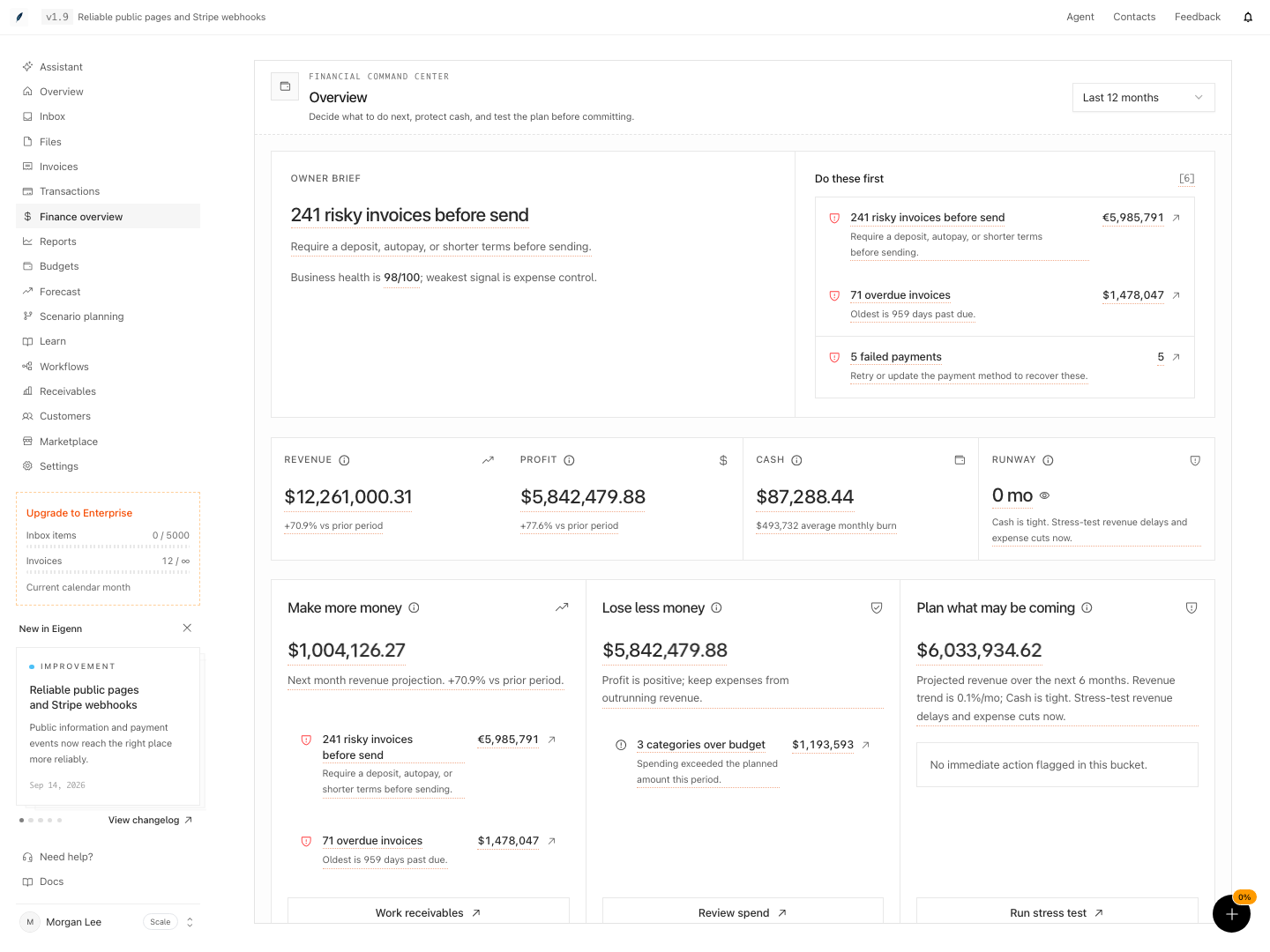
Shown with synthetic data in a local workspace.
Verification
Confirm the Result
A command-center pass is complete when:
- the selected period matches the decision that you make
- no unexpected bank-connection error remains in Do these first
- you can explain each critical or warning action and have opened the relevant record
- cash and runway use the expected workspace currency and connected accounts
- you checked every decision that depends on future cash in Finances → Forecast
There is no Complete review or Save review control on Overview. Completion means that you resolved or assigned the source records.
- Select a reporting period and confirm that the figures for revenue, profit, cash, and burn update to match expected values.
- Review the triage queue and verify that each critical or warning item links to the appropriate working page for action.
- Confirm that cash and runway figures are calculated with the current connected accounts and match workspace currency settings.
- Check that no unresolved bank-connection errors remain in the triage section when all bank data are up to date.
- Use the stress test or forecast tools as described and check that modeled figures reflect expected changes when assumptions are altered.
- Open linked records from action items and verify they show supporting details relevant to the signal shown.