Assistant Automation
Set up business context, goals, watchers, scheduled work, approvals, and a deny-by-default Autopilot policy for your team.
Summary
Assistant automation turns repeated business questions into team-scoped controls. An operator supervises the current model. Eigenn can watch thresholds, queue proposed work, group related actions, and record what happened. Operators keep an approval gate around actions that have consequences.
Capabilities
The assistant can watch specified metric thresholds, group actions based on projected financial events, save and repeat prompts on a schedule, record business facts, and maintain an approval workflow before any action is taken. It supports setting up goals, watchers, scheduled operations, configuring autopilot for limited automatic actions, and auditing all assistant activities.
Prerequisites
Prerequisites
- Sign in to a workspace with an active team.
- Connect and sync the data sources needed by the metric or prompt.
- Decide who owns Approvals before you create proactive work.
The settings on these pages apply to the whole team unless the page says otherwise. Coordinate changes with the other operators in the workspace.
Concepts
Where the Controls Live
- Use Approvals to review, claim, approve, reject, or undo proposed Assistant actions.
- Use Settings → Notifications for event and channel preferences.
- Use Settings → Integrations to connect Slack and other applications.
- Use the Assistant operation pages for proactive Assistant behavior. These pages are What I know about your business, Goals, Watchers, Scheduled runs, Autopilot, Action Bundles, Decisions, and Autopilot audit.
Some deployments do not yet show every Assistant operation page in the primary navigation. If a named page is unavailable in your workspace, contact your workspace administrator or support. Do not guess a URL.
Business Context
What I know about your business stores the team facts that Assistant keeps in mind:
- Industry
- Fiscal year starts
- Base currency
- Primary goals
- Focus areas
- Notes
Choose Save after you edit the facts. Benchmark, insight, and runway analysis can use these facts. The facts do not replace the live finance records in the workspace. Not every answer restates them.
Workflow
Goals
Use Goals for a fixed target that a metric must reach or keep.
- Choose New goal.
- Enter a plain-language label.
- Enter the Metric name.
- Choose at or above, above, at or below, below, or equal to.
- Enter a numeric Target and optional Due date.
- Choose Create goal.
You can mark a goal Active, Met, Missed, or Archived. You can also delete a goal. The current Goals page shows the saved rule and the lifecycle status. The progress bar uses the status. It is full for Met and empty for the other statuses. It is not a live percentage from the metric.
Watchers
Use Watchers for a fixed threshold question.
- Choose New watcher.
- Describe what Eigenn must watch.
- Enter a supported Metric name.
- Choose the condition and numeric threshold.
- Choose Daily, Weekly, or Monthly.
- Choose In-app, Slack, or Email as the requested channel.
- Choose Create watcher.
Eigenn turns on a new watcher. Use Pause, Enable, or Delete to manage the watchers.
The most useful canonical metric names are:
| Metric name | Definition |
|---|---|
runway | cash runway in months, from past data |
runway_projected | projected runway low point over the forward horizon |
cash_projected | projected cash low point |
breach_probability | probability of a cash breach from a fresh canonical forecast |
overdue_ar | overdue receivables total |
promises_at_risk | open payment promises that Eigenn marks at risk when the promise data is available |
dso | days sales outstanding, from past data |
Eigenn can save an unrecognized metric name. Eigenn cannot evaluate that name, and the watcher does not fire. Use the canonical names above. You can also create the watcher from a supported Watch this number control. An example is the eye icon beside Runway on Overview.
Eigenn deduplicates threshold crossings by the selected period. A retry does not create the same proposal twice in one daily, weekly, or monthly window.
Scheduled Runs
Use Scheduled runs to save an Assistant prompt that repeats.
- Choose New scheduled run.
- Enter a name and the complete prompt to run.
- Enter an agent identifier if you want one.
- Leave the field blank to let Eigenn route the prompt.
- Choose Hourly, Daily, Weekly, or Monthly.
- Choose In-app, Slack, or Email.
- Choose Create scheduled run.
Use Pause, Enable, or Delete to manage a run. The row shows its schedule, requested channel, optional agent, and last status when available.
Current scheduled prompt runs record a deduplicated queued request for review. They do not yet produce a complete background Assistant answer. Eigenn stores the delivery channel that you select. Slack and email result delivery are not available from this path yet. The queued status confirms only that Eigenn recorded the request. It is not proof that the prompt ran or that Eigenn delivered a message.
Workspace Approvals
Watchers and other Assistant operations can create proposed actions in Approvals.
- Start with Open.
- Select a proposal and review the action, amount, customer or invoice context, tone, cash impact, and tool identifier.
- Choose Claim to take ownership.
- Choose Approve or Reject.
- Follow the status through Approved, Executing, Done, Failed, Rejected, or Undone.
- Use Undo only for an action that is complete or in progress. The undo window must still be open.
Approval records the decision of the operator. Execution happens separately. An Approved status is not the same as Done. Confirm the terminal status before you assume that a message, fee, escalation, or connected-app action happened.
Action Bundles
Action Bundles group proposed responses to a projected cash-floor breach. A bundle can contain collections work, drafted communication, and decisions about bill dates.
- Choose Approve all to approve every still-proposed line.
- Choose Approve on an individual line to keep the decision narrow.
- Choose Drop to reject one line. The other lines do not change.
- Read the read-only runway impact before you approve. Eigenn shows the impact only when it is available.
Eigenn omits the runway preview when there is not enough burn history. Eigenn also omits it when the runway has no limit. The preview is a projection that helps you plan. It is not a cash change that happened.
Autopilot
Autopilot is off by default and denies by default.
To turn it on:
- Add exact, comma-separated values to Allowed actions (comma-separated action ids).
- Set Max amount.
- Leave Max amount blank only when you want no numeric cap.
- Set a positive whole-number Undo window (minutes).
- Turn on Enable autopilot.
- Choose Save.
- Confirm Autopilot policy saved.
An action is eligible only when all applicable safety checks pass:
- the team policy is on,
- the action identifier exactly matches the permitted-action list,
- the amount is not above the cap that you set,
- Eigenn can find an amount when a cap exists, and
- Eigenn does not classify the action as irreversible.
An unknown amount under a cap that you set fails closed. Eigenn never auto-approves delete, remove, destroy, purge, drop, wipe, terminate, and hard-delete style actions. This is true even when you enter them in the permitted-action list. Everything outside the policy waits for human review.
Autopilot also depends on scheduled background work that is on for the workspace. A saved policy alone does not prove that background action work is active.
Autopilot Audit
Autopilot audit is a read-only record of autonomous actions. Entries show the summary, action identifier, reason, failure state, and whether the action is still undoable.
The page does not give the undo control. Use Approvals while the undo window of the action is still open.
Decisions
Use Save as decision on supported results for affordability, pricing, or new hires. Eigenn creates a permanent record in Decisions. The list keeps the answer that you chose and the frozen snapshot. When a decision links to a scenario, Re-run linked scenario evaluates that scenario against current data. The frozen original does not change.
Behavior specification
Limitations
- Watchers show threshold crossings through in-app approvals and deliver the selected Slack or Email alert. Email uses the watcher creator, workspace owner, or an active member as the recipient. Slack uses the workspace's installed Slack connection.
- Watchers do not offer an exact time-of-day or timezone control.
- Scheduled prompt runs queue requests and do not yet complete a background AI response.
- Goals need the operator to manage the lifecycle status on the current page. The visible progress bar is not live metric progress.
- Autopilot's blank amount cap means no monetary cap. The permitted-action list and the irreversible-action block still apply.
- Approved proposals execute separately. A proposal can stay approved when action work is unavailable.
Diagrams
Rendering diagram…
Screenshots
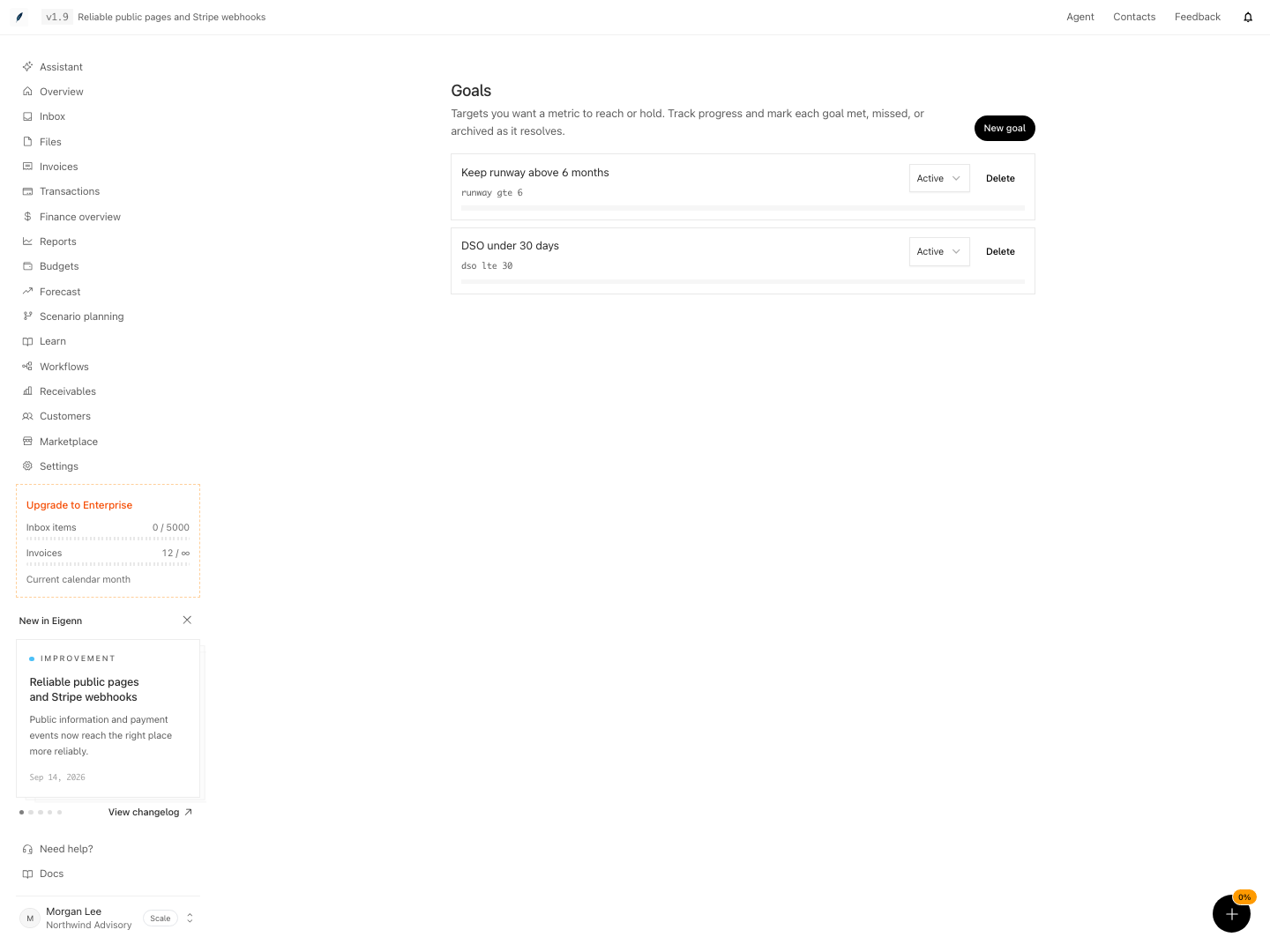
Shown with synthetic data in a local workspace.
Verification
Confirm the Result
Assistant operations are ready when:
- Assistant has current business context,
- every goal and watcher uses a known metric and clear threshold,
- proposed actions have an owner in Approvals,
- Autopilot is off on purpose, or it has a narrow permitted-action list with a cap and an undo window, and
- operators check Done, Failed, and Autopilot audit, and do not treat Approved or queued as completion.
Troubleshoot
A watcher never fires
Confirm that the watcher is on. Confirm that it uses a supported metric name and has enough synced source data. Confirm that it crosses the condition that you set. If Eigenn never evaluated the watcher, ask support. Support can confirm that proactive Assistant work is on for the workspace.
Slack or email gets no watcher result
Check Approvals first to confirm that the watcher crossed its threshold. For Email, confirm that the recipient has watcher email notifications enabled. For Slack, confirm that the workspace has an installed Slack connection. A successful alert is sent once per watcher schedule period; failed delivery is retried by proactive processing.
A scheduled run stays queued
Queued means that Eigenn recorded the repeat request. It does not mean that a background Assistant answer completed. Open Approvals. Contact support if scheduled background work must be active for your workspace.
Autopilot does not run a permitted action
Check for an exact identifier match or an amount above the cap. Then check for an unknown amount while a cap applies, or an irreversible action class. Also confirm that the workspace has proactive background work turned on.
An approved action did not happen
Filter Approvals to Approved, Done, and Failed. Approval and execution are separate. Use Autopilot audit for autonomous-action details.
- Check that your workspace is connected and contains current business context in 'What I know about your business.'
- Create a new goal and confirm it appears with the correct status and progress bar.
- Add a watcher using a canonical metric and trigger its condition with test data; confirm a notification is sent to the selected channel and a proposed action appears in Approvals.
- Review and claim a proposed action in Approvals; approve it and confirm its status moves to Approved, Executing, then Done.
- Enable Autopilot with specific actions and a cap; trigger an eligible action and confirm it is auto-approved and appears in Autopilot audit.
- Attempt to trigger an irreversible or out-of-policy action and confirm it remains in Approvals for human review.
- Schedule a recurring run and confirm its queued status but no automatic result or message is delivered.
- Use the Decisions page to save and re-run a supported decision; confirm the frozen original remains unchanged after rerun.
- For each watcher and run, verify only one notification per period; check logs for deduplication.
- After all actions, review Autopilot audit and Approvals for complete history and status on each automated proposal.