Receivables
Check collection exposure, payment speed, customer risk, and the work that improves cash collection most.
Summary
Receivables is the operations dashboard for the money that customers still owe. It combines current accounts-receivable exposure with period-based collection signals. You can then decide which invoices and customers need attention before you open the invoice record to act.
Capabilities
What Receivables Helps You Do
- See current outstanding receivables and aging exposure.
- Compare payment speed and collection performance over a selected period.
- Find overdue invoices, failed payments, broken promises, risky terms, and missing autopay.
- Examine the customers whose payment behavior or value deserves closer attention.
- Move from a business-level signal to the invoice, customer, or transaction record that explains it.
- Manage tone profiles and controlled tone experiments for eligible payment communications.
Prerequisites
Before You Start
- Sign in and select the team whose receivables you want to review.
- Confirm that invoice statuses, issue dates, due dates, paid dates, customers, and currencies are accurate.
- Record payments against the correct invoice before you treat a collection metric as current.
- Connect the payment and communication services that you use for customer follow-up. Then confirm them.
- Treat mixed-currency totals as directional until you reconcile them by currency.
Concepts
Read the Headline Signals
The overview begins with four key metrics:
| Signal | What it represents | Time behavior |
|---|---|---|
| Outstanding | Sum of current unpaid and overdue invoice totals | Current as of today |
| DSO | Average opening/closing current-open invoice totals ÷ positive period transaction amounts × days in period | Selected period |
| Collection rate | Paid invoice count divided by paid, unpaid, and overdue invoice records | Invoices issued in the selected period; creation date is the fallback |
| Avg days to pay | Average days from invoice issue to payment for paid invoices | Invoices paid in the selected period; creation time is the fallback start |
These metrics answer different questions. Outstanding remains a current snapshot. DSO, Collection rate, and Avg days to pay follow the selected period, but Collection rate selects by issue date while Avg days to pay selects by payment date. They are not the same cohort.
The collection-rate denominator includes paid, unpaid, and overdue invoice records. Draft, scheduled, and canceled records are excluded. It counts invoices equally rather than weighting the recovered amounts.
Review Receivables Health
The Receivables health section shows how outstanding balances age and where collection risk concentrates:
- AR Aging — current outstanding balances grouped into 0–30, 31–60, 61–90, and 90+ day buckets
- Invoice Status — invoice amount grouped by current status for the selected period
- At-Risk Customers — a short list selected by late-invoice share, then displayed in order of the field labeled average days late
- Customer Profitability — estimated profit for up to ten customers, using period invoice revenue less an allocated share of transaction expenses
Start with the oldest non-zero aging bucket, then check whether the same customers appear in the at-risk list.
The At-Risk card's days late label currently uses days from issue to first successful payment, not days past due. Its late percentage includes unpaid past-due invoices as well as paid invoices, and can include not-yet-due invoices as not late. The query selects up to ten customers by late share before the display sorts them by the timing value. It does not rank every customer by overdue duration.
Customer Profitability subtracts stored invoice tax and VAT from revenue, then allocates eligible transaction expenses in proportion to each customer's share of revenue. This is an allocation, not direct customer-cost tracking. Invoice Status selects invoices issued in the period, including draft, scheduled, and canceled statuses. DSO uses positive transactions and current-open invoice states; it does not reconstruct historical receivable balances.
AR Aging is a current snapshot. A change to the reporting period does not change its as-of-today calculation. It includes unpaid and overdue invoices without a paid date. Future-due invoices and invoices with no due date fall into the 0–30 bucket at zero days; this bucket is not entirely overdue. Amounts are invoice totals, without partial-payment deductions.
Collection trends over time live under Receivables → Analytics, not on this page. See Receivables Analytics for the collection curve, recovery rate, payment lag, and DSO movement.
These cards are prompts for investigation, not instructions to change the treatment of a customer automatically. Open the customer and invoice history before you change terms, tone, or escalation.
What the Period Selector Does Not Change
The period selector does not now change:
- current Outstanding and AR Aging
- Tone Profiles and Tone Experiments, which have separate reporting and assignment behavior; see their dedicated guide
Use the count and the subtitle on each card to find whether a zero is meaningful.
Currency and Data Limits
- Some current invoice aggregates combine raw invoice amounts and display the most recently observed invoice currency. They do not give a complete multi-currency conversion layer.
- Period cards that accept a currency can still depend on the source analytics data and the configured records. Reconcile important totals against the source invoice and accounting system.
- Empty teams can show zero or an empty card. A zero with no invoices behind it is an absence of data, not evidence of strong performance.
- Customer-level cards show focused ranked lists rather than exhaustive exports.
- Recent invoice and payment updates can take a short time to appear in analytical views.
- Receivables is a dashboard, not a replacement for the invoice ledger. Status, payment, and communication corrections belong on the record that owns them.
Workflow
Open Receivables
- Open Receivables in the main navigation.
- Select Overview, Analytics, Tone Profiles, or Tone Experiments in the section navigation.
- On Overview or Analytics, choose a reporting period.
- Use Custom range when the standard four-week, three-month, six-month, 12-month, month-to-date, year-to-date, or all-time choices do not fit the review.
Eigenn stores the selected period in the page URL. All time starts on January 1, 2020; choose Custom range for earlier records. An inverted range shows an error and hides the headline metrics until corrected. The period does not apply to every card or alert.
Work the Do Next Queue
The Do next section shows non-empty receivables alerts. Most are current or unbounded counts, even when you select a reporting period. Eigenn orders the items by severity, then by monetary impact when an amount is available.
| Item | What triggered it | First check |
|---|---|---|
| Overdue invoices | One or more invoices have Overdue status | Open the overdue invoice list. Confirm the balance, the due date, and the customer context |
| Risky terms | Scheduled, unpaid, or overdue invoices belong to customers whose health score is at risk or critical | Recheck deposit, autopay, and term length before you send or follow up |
| Broken promises | Promise records have Broken status | Confirm the promise and whether a payment arrived through another path |
| Failed payments | Failed payment-attempt records exist, without a selected-period cutoff | Check the payment method and provider evidence before you try again |
| Missing autopay | Scheduled, unpaid, or overdue invoices of at least 1,000 currency units belong to customers without a default payment-method record | Confirm customer authorization and saved payment method status |
Overdue invoices, Broken promises, and Failed payments open the Overdue invoice list. Risky terms opens the invoice list without that filter; Missing autopay opens Customers. These are workspace links, not exact lists of every record counted by the alert.
Risky terms uses the selected period for customer health, but the candidate invoice list is current. Risky terms and Missing autopay inspect at most 500 candidate invoices, so they are not exhaustive audits. A default payment-method record suppresses the missing-autopay alert without proving authorization, validity, or successful charging.
Severity is critical for overdue exposure at least 30 days old, at least three broken promises, at least five failed attempts, or risky terms. Amounts within a severity group determine ordering. In multi-currency teams, some alert counts span currencies while the displayed amount covers only one currency; reconcile the records rather than adding alert amounts together.
If the section says Nothing needs your attention right now, no supported alert bucket is non-empty now. It does not prove that every invoice is correct or that every payment settled.
Turn a Signal Into Collection Work
- Select the period that matches the operations review.
- Read Do next before you interpret the charts.
- Note the largest aging bucket, then open Analytics for movement in DSO, recovery rate, or payment lag.
- Open Invoices → Invoices.
- Filter to Overdue or the relevant customer, date, amount, or status.
- Open the invoice details and confirm these items:
- customer and contact details
- amount remaining, payments, credits, and adjustments
- issue and due dates
- dispute, settlement, and prior communication context
- current recovery status and next action, when present
- Choose a one-time reminder, settlement offer, status correction, or Auto-chase only after the record supports it.
- Return to Receivables after the invoice record is correct.
- Refresh the page.
Behavior specification
Receivables presents a dashboard aggregating invoice and customer data, showing current and period-based metrics, surfacing alerts requiring attention, and providing links to investigation and action screens. Confirm the relevant invoice context before sending reminders or editing records. The system does not automatically change invoice or customer records. Data accuracy depends on the source records and current integrations.
Diagrams
Rendering diagram…
Screenshots
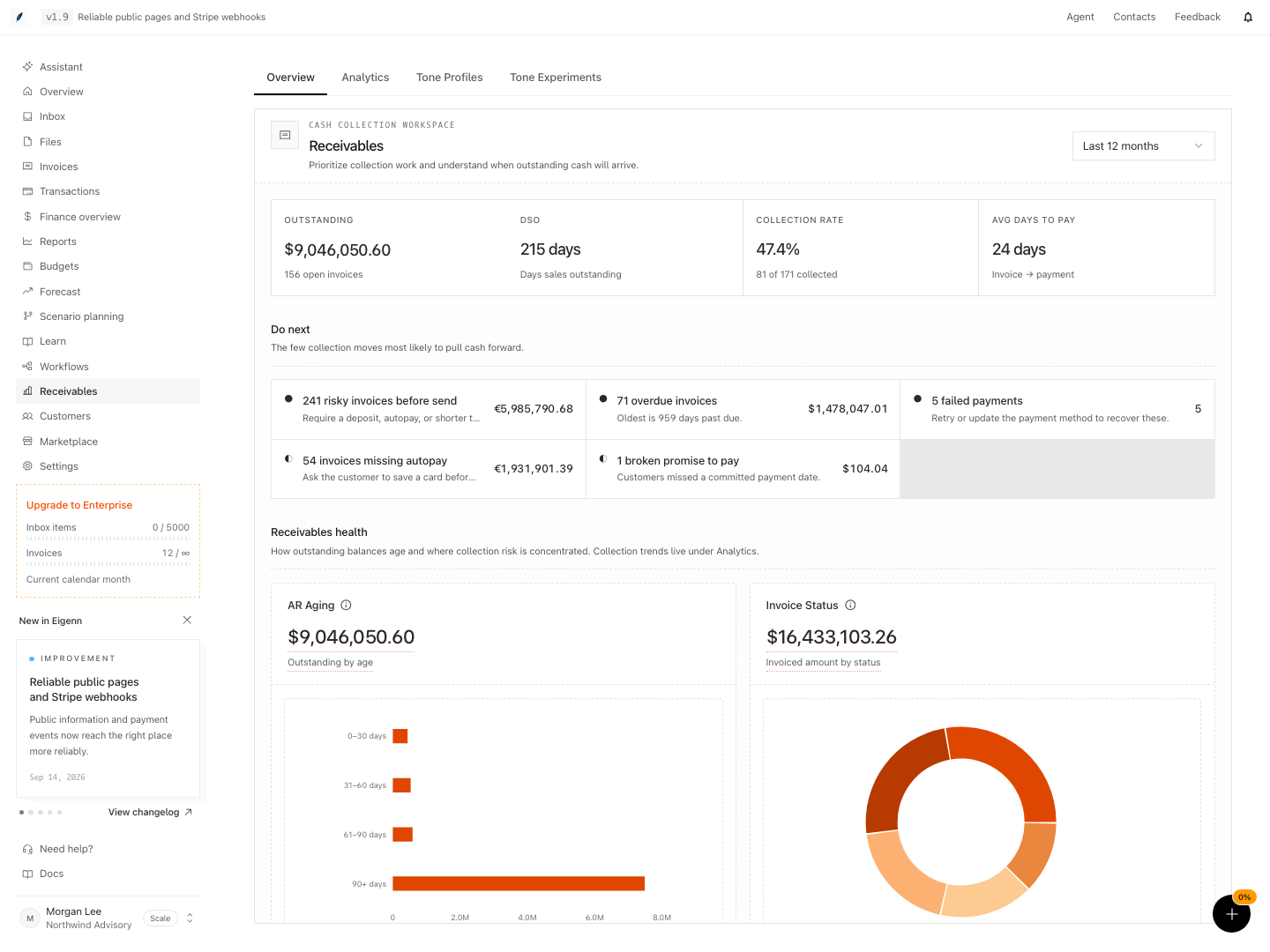
Shown with synthetic data in a local workspace.
Verification
Troubleshoot
The period changed but a headline number did not
Outstanding remains current across period changes. Collection rate and Avg days to pay use the selected period with different date bases; an unchanged value can also mean both periods contain the same relevant records. Check the time behavior table before treating a value as stale.
Outstanding does not match the invoice balances I added manually
Confirm invoice statuses and currencies first. AR-aging totals can combine raw amounts across currencies. Aggregate outstanding can also miss an invoice-level partial-payment detail. Use the full invoice records to reconcile payments, credits, and remaining balances.
A card is empty even though invoices exist
The card can need paid dates, past-due invoices, customer links, or activity inside the selected period. Open Invoices → Insights and the invoice list. Then confirm the necessary source data.
An action item does not open the exact invoice
The links open the invoice or customer workspace. Broken promises and failed attempts open the Overdue list, which may omit the specific record if its invoice now has a different status. Use the alert description and customer history to investigate.
A recent payment is still shown as outstanding
Open the invoice. Confirm that the payment, amount remaining, paid date, and status agree. Refresh Receivables only after the source record is correct.
- Open Receivables and confirm the overview displays current outstanding balances in aging buckets. The correct date buckets should be shown with non-zero values when invoices exist.
- Change the reporting period and observe which headline metrics update; DSO, collection rate, and average days to pay should use the new period, while Outstanding stays current. Confirm issued-date versus paid-date selection with records on either side of the range.
- Check the 'Do next' queue for actionable alerts. Select an alert and verify that you can access the corresponding invoice, customer, or workspace records from the alert link.
- For an overdue invoice, open its details and review the customer information, payment history, and current status to ensure data agrees with the source record.
- Apply filters in the Invoices view (by overdue, customer, date, amount, or status) and confirm that matching records are returned and details are consistent.
- Make a payment or status update in the invoice record, refresh Receivables, and check that the overview and health metrics update accordingly after a short delay.
- If the period changes but some metrics do not, refer to the period selector explanation card and compare expected vs actual metric change behavior.
- For empty data cases, confirm that cards with no invoices show zeros or are empty, not misrepresenting performance.
- Follow an alert to its owning record and confirm the context before acting. Expected: the alert guides investigation; it does not itself certify that payment or contact data is accurate.