Files and Document Vault
Store, find, organize, examine, and share financial files and native Eigenn documents from one document library.
Summary
Files opens the permanent document library for the workspace, called the Vault throughout the library controls. It combines uploaded files, folders, search, structured financial context, transaction suggestions, and native Eigenn documents.
Capabilities
What It Helps You Do
- Upload and keep financial documents and related files.
- Organize files in nested folders and add reusable tags.
- Search by words, semantics, date, document type, extraction status, counterparty, amount, currency, or period.
- Save a filtered view as a smart folder.
- Examine previews, summaries, extracted fields, related files, and file metadata.
- Download one file, create a download link that expires, or download selected files together.
- Check duplicate files, extraction issues, suggested matches, vendors, and renewals from the document workspace.
- Create and publish native Eigenn documents.
Prerequisites
Prerequisites
Before you start:
- Sign in to the workspace that owns the documents.
- Use a role with write access to upload, create folders, edit metadata, confirm extractions, or publish documents.
- Connect transaction data when you want document-to-transaction suggestions.
- Keep the original source available until the process finishes and you confirm the extracted values.
Concepts
The Vault is a centralized document library supporting both uploaded files and native Eigenn documents. Key concepts include folders for hierarchical organization, tags for contextual classification, filters and semantic search for easy file retrieval, and smart folders for reusable saved search views. File metadata and extraction status provide insight into the processing lifecycle, while publishing capabilities enable links and document sharing. The document intelligence dashboard highlights operational needs such as verifying documents, deduplicating files, and monitoring renewals. Limitations exist for file type support, naming conflicts, batch upload sizes, and the difference between saved filters (smart folders) and physical folders.
Workflow
Find Files
- Select Files in the primary sidebar.
- Use Ask or search across your files to search or apply filters.
- Use Grid view or List view to change the library layout.
- Select Workspace at the top of Files to open the document hub.
The primary sidebar's Inbox opens receipt intake and reconciliation. The Workspace button inside Files opens the document hub described later on this page.
Upload Files
- Select Files → Upload, or drag files over the library.
- Keep the tab open while the upload progress is visible.
- Wait for Processing files to finish.
- Open the file.
- Check File Information → Status.
Vault uploads support up to 25 files per batch and 100 MB per file. Eigenn rejects empty files.
Eigenn can process PDFs, common image formats, CSV, plain text, Markdown, Microsoft Office files, OpenDocument files, and RTF. The Vault can still keep other file types. Those files can have no summary, no extracted financial fields, and no generated tags.
To upload directly into a folder, open the folder first. Then use Upload, or drag files into that folder view.
Organize the Library
Create folders
- Select New folder.
- Enter a Folder name.
- Select Create folder.
Folder names must be unique within the same location. Create a folder while another folder is open to nest it there.
Use a folder’s action menu to select:
- View details
- Ask AI
- Rename
- Delete
When you rename a folder, its nested files and folders stay in place. The delete dialog offers Delete everything inside for permanent nested deletion. Leave that option off unless you want to remove all nested content.
Rename or move a file
- Open the file action menu.
- Select Edit.
- Change Name, choose a destination under Folder, or do both.
- Select Save.
Choose Vault root to move the file out of a folder. File names must be unique inside the destination folder. A duplicate name produces a conflict message. Eigenn does not overwrite the file that is already there.
Add tags
- Open the file action menu and select View details.
- Find Tags.
- Use Select tags to choose a tag that exists, or to create a new one.
- Remove a selected tag when it no longer describes the file.
When you select a tag on a Vault item, Eigenn filters the library to that tag. When you delete a tag from the tag picker, Eigenn removes the shared tag option. It does not remove only the assignment on one file. Use that action carefully.
Search and Filter
Enter a word or phrase in Ask or search across your files. Eigenn can interpret a multi-word request into a search and date filters. If that interpretation is unavailable, Eigenn falls back to a normal text search.
Open the filter button to use:
- Date
- Tags
- Extraction status
- Period
- Document type
- Counterparty
- Min amount and Max amount
- Currency
- Semantic search
Document-type choices include invoices, receipts, bank statements, credit card statements, expenses, contracts, tax forms, financial statements, purchase orders, quotes, and payroll records.
Extraction-status choices include Pending, Extracted, Verified, Edited, Failed, Skipped, and Needs review.
Save a smart folder
A smart folder keeps a useful filter. It does not move any file.
- Apply at least one supported filter.
- Enter a name in the field below the search control, or keep the generated summary.
- Select Save smart folder.
- Select the saved smart-folder name whenever you want to reapply its filters.
Select the x beside a smart folder to delete the saved view. The documents themselves remain unchanged.
Examine a Document
Open a file or select View details. The detail view can show these items, based on the file and the result of the process:
- File preview
- Summary
- Extracted Data
- Suggested matches
- Tags
- Related Files
- File Information
- More Metadata
- Storage Path
File Information includes the processing status, file name, size, MIME type, document type, language, upload time, last update, and page count when available.
The file action menu gives:
- View details
- Ask AI
- Edit
- Download
- Copy link
- Delete
Ask AI opens the file as document context. It then prepares a request to summarize the file and to flag the items that need attention.
Copy link creates a secure download link and copies it to the clipboard. A link from the file action menu expires after seven days. Use Share → Publish instead when you share a native Eigenn document as a live page.
Use Grid and List Views
Grid view separates folders and files into visual sections. List view makes file status, tags, size, and row selection easier to compare.
In List view:
- Select the checkboxes for the files that you need.
- Check the selected count in the bottom bar.
- Select Download to download the selected files together.
- Select Deselect all when you finish.
Use Files → Workspace
Select Workspace from the top of Files to open the document hub. This page combines document creation, recent work, operational document signals, and another view of the Vault library.
Create a native document
- Select New document.
- Add a title and content in the editor.
- Use the document toolbar for cover, icon, live-data refresh controls, and export actions when those controls are available.
- Use Share when the document is ready to publish.
The hub also gives Browse vault, counts for Folders, Documents, and Files, recently opened folders, recently updated documents and files, and the Workspace library.
Check document intelligence
When the Vault has relevant extracted data, the document hub can show:
- Next actions
- Status center
- Duplicate files with Archive copies
- Review queue with Repair failed and Verify visible
- Audit trail
- Suggested matches with Link, Dismiss, Link visible, and Dismiss visible
- Top vendors by spend
- Renewal reminders
- Export CSV
These sections stay hidden when there is no relevant data. Their absence on an empty or new Vault is correct.
Check the visible documents before you use bulk actions. Verify visible, Link visible, Dismiss visible, and Archive copies apply changes to the items that the section shows now.
Behavior specification
Recent work and personal history
The document hub shows recently updated documents and files. These lists describe workspace activity; they are not a list of documents you personally opened. Personal recently opened history does not have a control in Files yet.
Limits and Edge Cases
- Vault uploads have a limit of 25 files per batch and 100 MB per file. Vault does not accept empty files.
- Upload success confirms storage. Classification, the search index, tags, and structured extraction can finish later.
- A stored file can show Ready without Extracted Data when its format is not processed or it is not a recognized financial document.
- Structured fields and suggested matches appear only when the processor has enough supported content.
- A smart folder is a saved filter, not a physical folder.
- Smart folders preserve text and metadata filters, but they do not preserve the Semantic search toggle.
- You cannot use the same folder name twice in one location. You can use it in a different folder.
- Copy link is unavailable when a file has no stored file path.
- A file link that expires is different from a published native document.
- When you delete a file, this can affect a transaction that uses it as an attachment. The delete dialog names the attachment use before confirmation.
- The document intelligence panel is data-dependent and renders nothing when every section is empty.
Diagrams
Rendering diagram…
Screenshots
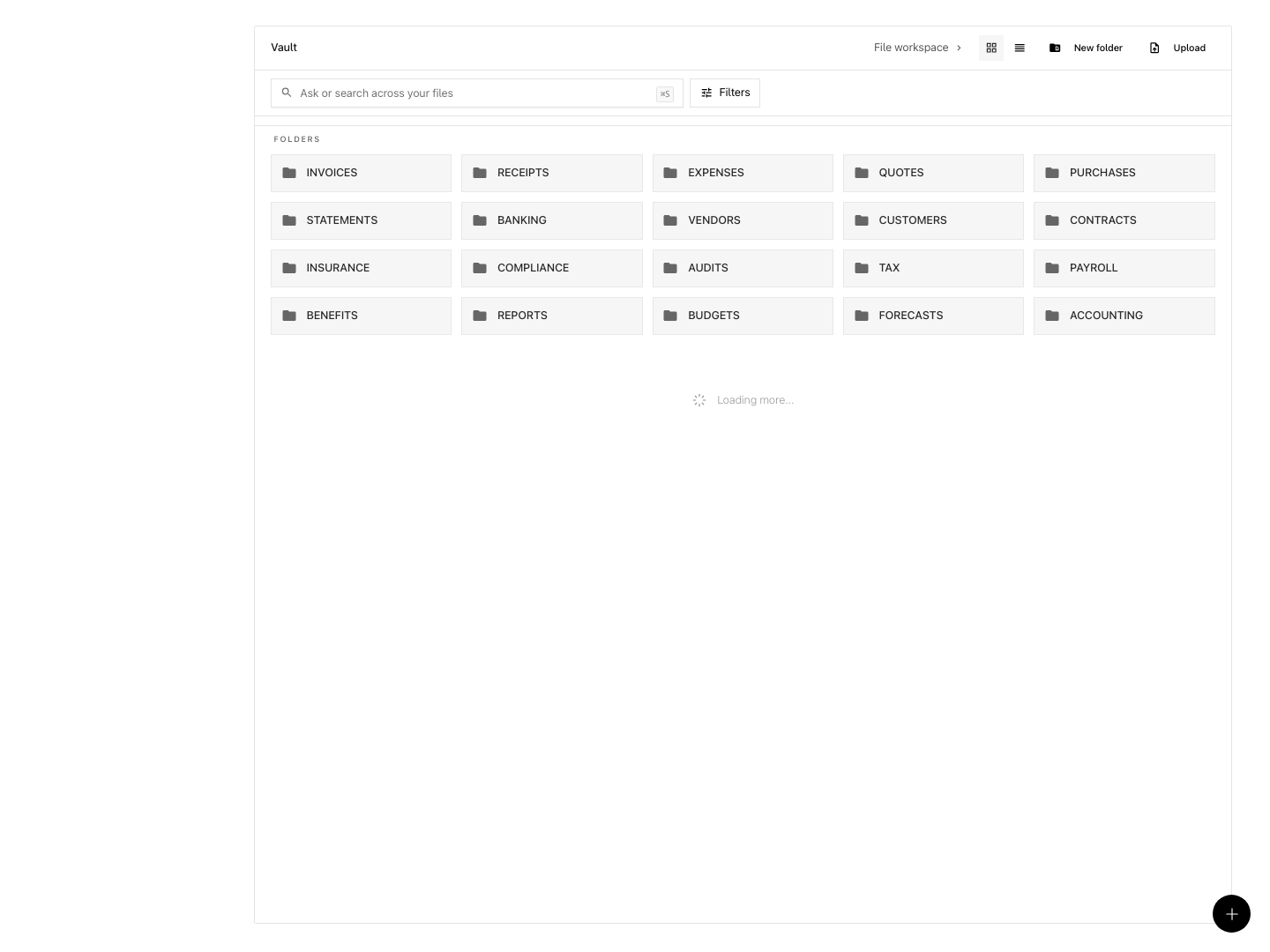
Shown with synthetic data in a local workspace.
Verification
Confirm the Result
A well-organized Vault has these observable outcomes:
- An uploaded file appears in the intended folder
- File Information → Status becomes Ready, or shows Failed clearly when processing needs attention
- Tags appear on the document and work as filters
- A smart folder restores the filters that you saved in it
- A renamed or moved file appears with the new name in the chosen folder
- A copied file link opens a Download File page and names the workspace that shares the file
- Duplicate, review, and match actions disappear from their queues after you resolve them
Troubleshoot
The upload says successful, but the file is still processing
Upload and processing are separate phases. Open View details. Check File Information → Status and Progress. Keep the tab open during the upload itself. After storage completes, background processing can continue.
Search returns no documents
Remove the filter chips one at a time. Turn off Semantic search. Try a simpler term. Check the saved smart folders and tags, because they apply many constraints at one time.
You cannot move or rename a file
Check that the destination does not already have a file with the same name. Choose another name or destination. Then select Save again.
You cannot create or rename a folder
A folder name is necessary and must be unique within the current location. Open the intended parent folder before you create a nested folder.
A file link no longer works
A link from the Vault file menu expires after seven days. Create a new link. Then send the new URL. If you want to publish an editable native document, open that document and use Share → Publish instead.
Extracted values look wrong
Open Extracted Data. Select Verify / Edit. Correct the fields. Then save. Read Document Processing and Extraction for confidence, evidence, review states, and repair options.
- Upload a test file and ensure it appears in the correct folder with status 'Ready' or a clear failure.
- Assign tags to a file and verify they appear and filter the view correctly.
- Use a filter and save it as a smart folder, then confirm the saved view restores the filter set without moving files.
- Rename or move a file, checking it appears with the new name/location and that duplicate naming is prevented.
- Copy a file link and check it opens a download page that names the workspace; confirm the link expires after seven days.
- Resolve any duplicate or review queue actions and verify these items are removed from queues.
- Attempt uploading an empty file to confirm it is rejected.
- Test folder creation with duplicate names inside the same parent to confirm a conflict message appears.
- Edit extracted values for a processed document and save changes, verifying they are reflected in the document view.
- Use bulk download in grid/list view and verify that the selected files download together as expected.
Related
Related Pages
Document Processing and Extraction
Understand how Vault files move from upload to searchable context, structured financial fields, human verification, and transaction suggestions.
Financial Analytics and Reports
Review observed finance metrics, variance against the same period last year, projections, and export behavior under Reports.