Process Inbox Items
Move receipts and invoices from intake through review, transaction matches, and a clear completed state.
Summary
This workflow turns a new receipt or invoice into a reconciled Workspace record. It covers intake, queue triage, source review, suggested and manual matches, and status updates. It also covers the evidence to check before you mark the item complete.
Capabilities
The system allows users to upload, import, or forward documents into the Inbox, preview and correct item details, match receipts to transactions (automatically or manually), update the status of items, and manage exceptions or approvals. Assistant-proposed actions can be reviewed and processed by authorized users.
Prerequisites
Prerequisites
- Sign in to the correct workspace.
- Make sure your role can upload and update Inbox items.
- Connect or import the transaction data for the period that you review.
- Keep the original receipt or invoice available until you confirm the match.
- Connect Gmail, or copy the workspace email address, if the item arrives by email.
Concepts
Processing inbox items involves asynchronous steps: document intake, extraction and analysis, transaction matching, and workflow status management. Queue filters help focus review. An item can be in states like Pending, Matched, Suggested, or No match. Actions like archive, delete, and retry matching allow exception and history handling. Assistant proposals appear in a separate queue with their own approval workflow.
Workflow
1. Open the Right Queue
- Select Workspace in the primary sidebar.
- Select Inbox beside the Workspace heading.
- Start with Pending or Suggested when you work on unresolved items.
- Use All when you must locate a known item across states.
If the list is empty but filters are active, select Clear search. Do this before you change the intake settings.
2. Bring In the Document
Choose one intake method.
Gmail
- Open Workspace settings.
- Under Email Connections, select Connect email if the account is not present.
- Complete the Gmail authorization.
- Run a manual sync when you must check for new receipts immediately.
Workspace email address
- Open Workspace settings → Email Address.
- Copy the unique address.
- Forward an email that contains a supported receipt or document attachment.
Manual upload
- Select Upload files, or drag files over the Workspace.
- Upload PDF, JPG, JPEG, PNG, WebP, HEIC, HEIF, or AVIF files.
- Keep each file at or below 5 MB and each batch at 25 files or fewer.
- Keep the browser open until the progress message completes.
Checkpoint
The new item appears in the left queue. At first it can show Processing or Analyzing. The display name, amount, and match state become available after that.
3. Narrow and Order the Work
Use the queue controls to build a set of work that you can manage:
- Search by the item text
- Use Status to choose Matched, Pending, Suggested match, or No match. Choose the active status again to clear it
- Use the quick filters Pending, Suggested, Matched, and Unmatched
- Use Sort inbox to choose Most recent, Oldest first, or Alphabetically
The count beside the quick filters shows how many items match the current result set.
4. Review the Source Before You Match
- Select an Inbox row.
- Use the up and down arrow keys to move through nearby rows. You do not need to open the list again.
- Review the document preview.
- Compare the display name, amount, Received date, and source with the original.
- Under Details, check the available File, Size, Type, Source, Amount, Received, and Date values.
- For a PDF, use Zoom out, the percentage reset, and Zoom in when you need them.
- Use Download or Open in new tab when the embedded preview is not enough.
If the display name or amount is wrong, open the item menu and select Edit. Correct Display Name or Amount. Select Save. The Inbox list and selected item show the saved changes without a page reload.
5. Resolve the Match
When Eigenn suggests a transaction
- Review the name, date, amount, and confidence of the suggested transaction.
- Read any match explanation or partial-payment indicator that appears.
- Select Confirm only when the source and the transaction agree.
- Select Decline when the suggestion is wrong.
After a decline, the Match section switches to manual transaction selection.
When no suggestion is available
- Select Select a transaction.
- Review the best matches, or enter a transaction name to search a larger result set.
- Use the filter button to show or hide transactions that already have an attachment.
- Select the correct transaction.
When a link is wrong
- In Match, select the remove button beside the linked transaction.
- Confirm that the previous transaction disappears.
- Use Select a transaction to choose the correct record.
Checkpoint
The linked transaction appears in Match. The item returns to a Matched state after the data refreshes.
6. Set the Working Status
Use the status pill in the item header when the queue state needs a manual update:
- Pending keeps it in active review.
- Matched marks the item handled.
- Archived removes it from the active workflow but keeps the file.
The item menu also offers Mark as done. For completed items, it offers Mark as unhandled.
Do not mark a document complete only because Eigenn extracted an amount. Confirm the source, the transaction, and the date first.
7. Handle Exceptions
Retry the automatic match
Open the item menu and select Retry Matching. Use this action when the document is readable and the related transaction now exists. The item returns to Analyzing for a short time.
Preserve a workspace reference
Select Copy Link to copy a link to the Inbox record. This is a workspace link, so recipients need access to the same workspace.
Delete an invalid item
Use Delete only for duplicates, wrong-workspace uploads, or files that must not stay in the queue. Delete removes the Inbox record. Archive is the safer choice when you must keep the history available.
8. Review Proposed Assistant Actions
Receipts and Assistant approvals use separate queues.
- Select Approvals.
- Start with Open.
- Select a proposal.
- Review the action, amount, customer or invoice, tone, and cash impact.
- Select Claim when you take ownership.
- Select Approve to let the action run, or Reject to stop it.
- Follow the approved work under Approved and Done.
- Select Undo only when the completed proposal still offers it.
The message Action approved — it will run shortly. confirms that the proposal passed the human gate. Wait for Done to confirm that the execution finished.
Behavior specification
Limits and Edge Cases
- Manual uploads support only the listed PDF and image formats. The limit is 5 MB for each file and 25 files for each batch.
- Forwarded messages without supported attachments do not create Inbox items.
- You can ignore small non-PDF email graphics. They are usually logos or tracking images.
- The upload, the analysis, and the match are separate asynchronous phases.
- A Pending item can match later when new transaction data arrives.
- No match is a reconciliation state. It is not proof that the file is corrupt.
- When you show already-matched transactions, you can create more than one attachment on a transaction. Use this option only on purpose.
- Approval undo is time-limited. It is not available for every completed action.
- Delete and archive are different. Delete removes the record. Archive keeps the record outside active review.
Troubleshoot
A Gmail receipt did not arrive
Open Workspace settings → Email Connections and run a manual sync. If the account says Disconnected, select Reconnect. Confirm that the email has a supported receipt or PDF attachment. Message text by itself does not create a document item.
The queue appears empty
Select All, clear the search, and remove the status filter. Then confirm that you are in the correct workspace.
A file remains Processing
Refresh the Workspace after the upload finishes. If a preview appears but Eigenn produces no match, use Retry Matching. If the state does not move, contact support. Give the item ID, the file name, the intake method, and the Workspace link.
The correct transaction does not appear
Search by name. Turn on already-matched transactions if you need them. Confirm that Eigenn synced the transaction into the current workspace. If the transaction is still absent, repair the transaction import or the connection. Then try again.
A match does not confirm or clear
Wait for the list and the detail pane to refresh. Then open the item again. Clear the filters that can hide the new state. Do not repeat the action before you check whether the linked transaction changed.
An approved action has not completed
Check Approvals → Approved and Approvals → Done. Approval and execution are separate states. If it stays approved or reports an error, include the proposal ID and the action label in a support request.
Diagrams
Rendering diagram…
Screenshots
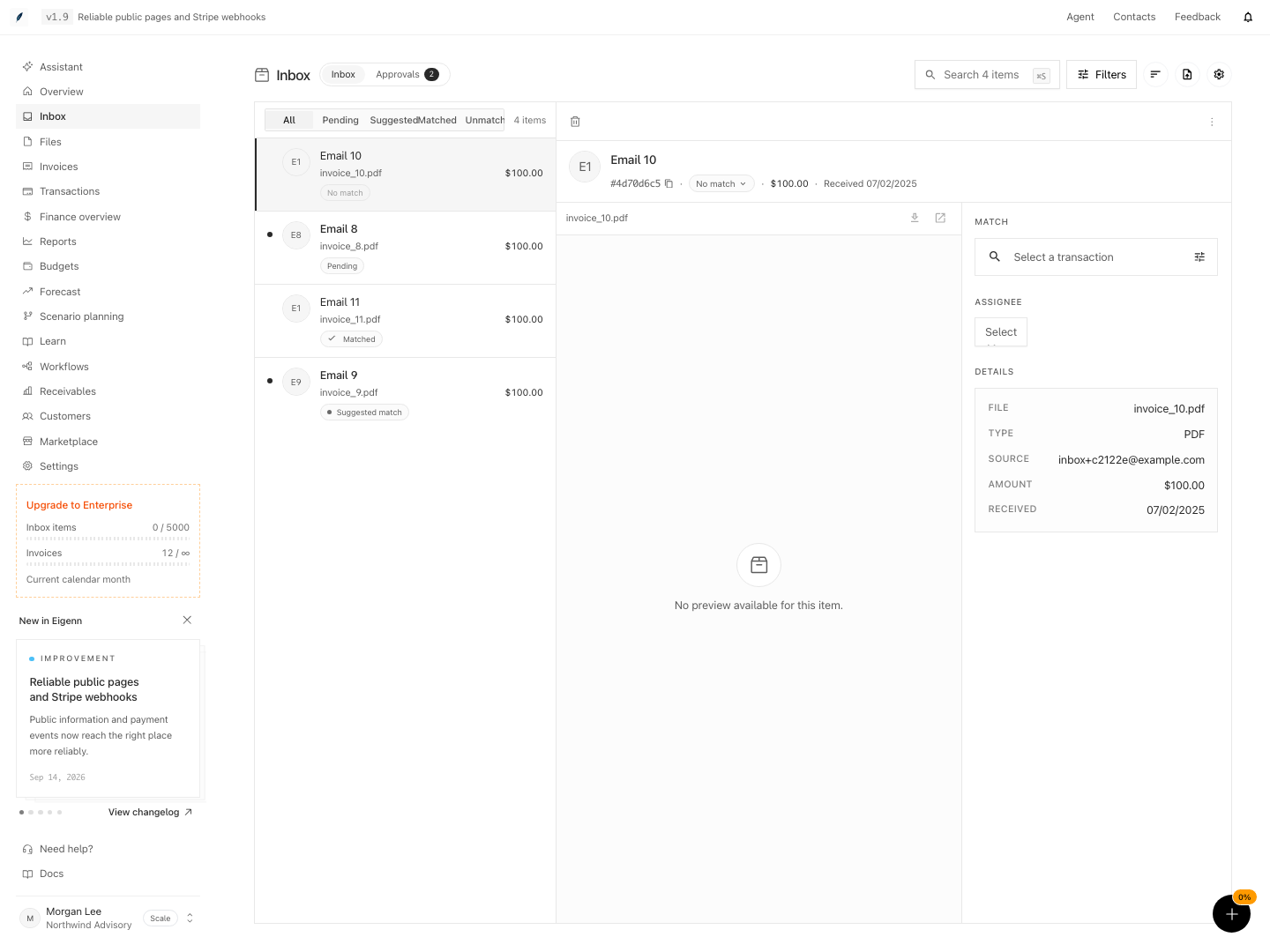
Shown with synthetic data in a local workspace.
Verification
Confirm the Completed Workflow
Before you leave the item, confirm:
- The attachment is the intended receipt or invoice
- The visible amount and date agree with the source
- The source shows Manual upload or the expected connected email
- Match shows the correct transaction
- The queue row shows Matched, or the status that your team chose on purpose
- The copied Workspace link reopens the same item for another authorized teammate
- Any assistant proposal appears in the expected Approved, Done, or Rejected queue
- Select an item after intake and confirm that the preview matches the original document (receipt or invoice).
- Verify that the displayed amount and date match the item source.
- Ensure 'Source' shows the expected method (manual upload or connected email).
- Confirm the correct transaction is linked in the Match section.
- Check the queue row status for Matched or another intentionally chosen state.
- Copy and use the Workspace link to access the item from another authorized account.
- For assistant proposals, check the appropriate state in the Approvals queue (Approved, Done, or Rejected) matches the workflow action.
Related
Related Pages
Organize and Share Documents
Build a useful Vault hierarchy, save reusable views, and share uploaded files or native Eigenn documents with the right link type.
Reconcile and Categorize Transactions
Clear the transaction review queue with categories, receipts, matches, splits, owners, and reporting decisions.