Security and Access
Protect individual accounts, enforce MFA for future members, and understand which workspace policy fields are active today.
Summary
Eigenn separates personal sign-in protection from workspace security policy. Settings → Account → Security manages your MFA devices. Settings → Security stores policy for the active workspace.
Capabilities
Protect individual accounts using time-based one-time password (TOTP) authenticator apps. Owners can require MFA for new members, control audit log collection and retention, and delete accounts or workspaces. The product supports personal account recovery if other factors are available, and it always records security-sensitive events. Owners can configure and enforce workspace security policies, while all users can manage their enrolled MFA factors.
Prerequisites
To modify workspace security settings or enforce MFA policy, you must be a workspace owner. To enroll a personal authenticator device, you need access to the account's security settings and a compatible TOTP app (such as Google Authenticator). For workspace onboarding, users performing organization administration need organization-level access. SSO setup and organization creation require prior administrator action.
Concepts
Workspace MFA Policy
Only a workspace owner can save Settings → Security.
Turn on Require MFA for New Members to make MFA mandatory for memberships created at or after the policy activation time.
This policy is prospective by design:
- Eigenn does not force current members into MFA when you turn on the policy.
- Eigenn redirects future members to MFA setup or verification before protected workspace pages.
- When you turn off the policy, Eigenn stops the future-member rule and clears its activation timestamp.
- A future member subject to the policy cannot remove their last factor.
Eigenn clears the MFA verification marker on a fresh sign-in and on logout. A user subject to the policy must confirm again before they continue to protected pages.
Workspace security settings
Settings → Security has two cards. Eigenn enforces every control on the page.
| Card | Setting | Enforcement |
|---|---|---|
| Access Control | Require MFA for New Members | Applies to memberships created at or after the activation time |
| Audit & Logging | Enable Audit Log | Controls whether Eigenn records routine write operations |
| Audit & Logging | Audit Log Retention | Sets how long Eigenn keeps routine audit records: 7, 30, 90, or 120 days |
New workspaces start with audit logging on and 90-day retention.
Earlier releases also showed session-timeout, IP-allowlist, data-retention, and customer-anonymization controls. Those controls saved a value that no session, request, or deletion path read, so Eigenn removed them. Enforce network and session restrictions at your identity provider, VPN, or proxy.
Audit logging
When Enable Audit Log is on, Eigenn records write operations with the actor, the action, the resource type, the result, the request duration, and the source IP address. Eigenn does not store free-form error text, because that text can contain personal data.
Eigenn always records security-sensitive events, even when you turn the setting off. These events cover workspace settings, roles and permissions, membership, and directory sync. A workspace cannot suppress the record of the action that disables auditing or of any privilege change.
A change to Enable Audit Log can take up to five minutes to apply, because Eigenn caches the value.
Retention
A nightly job deletes audit records in two passes:
- Records past the retention period of their category.
- Records older than the Audit Log Retention value that you selected.
The second pass applies only to routine business records. Security-sensitive records keep their longer compliance period, so a shorter workspace setting cannot delete them early.
The Settings → Security page saves policy. It does not display the recorded audit entries.
SSO and organizations
Organization setup is separate from the Security page. Open Settings → Account → Organizations to create or examine an organization. Use its administration link when it is available.
If domain-based sign-in says no team exists, an owner must first create and set up the identity organization. See Teams and Organizations for the supported organization workflow.
Workflow
Personal MFA Devices
Open Settings → Account → Security to see enrolled factors and their enrollment dates.
Add an authenticator
- Select Add device.
- Select Continue.
- Scan the QR code with a TOTP authenticator.
- Use the manual setup key if you cannot scan the code.
- Enter the current six-digit code.
- Select Verify & enable.
The current add-device flow enrolls a TOTP authenticator app. It does not enroll a passkey, hardware security key, or trusted-browser device.
Remove an authenticator
Select Remove beside a factor. If the active workspace needs MFA for your membership and this is your last factor, Eigenn blocks the removal. Add a replacement factor first. Then confirm the new factor.
Keep at least two factors when uninterrupted access is important. The app does not display downloadable recovery codes in the current Account security page.
Configure the MFA policy
- Sign in as a workspace owner.
- Open Settings → Security.
- In Access Control, turn on Require MFA for New Members.
- Select Save.
- Invite a test member after activation.
- Confirm that Eigenn redirects the new member to MFA verification before a protected page.
- Confirm that a current member can still enter without that prospective rule.
Configure audit logging
- Sign in as a workspace owner.
- Open Settings → Security.
- In Audit & Logging, set Enable Audit Log and Audit Log Retention.
- Select Save.
Choose a retention period that meets your compliance obligation. Eigenn cannot recover a record after the nightly job deletes it.
A non-owner sees the page read-only. The server also rejects a non-owner write, so the read-only state is not the only check.
Account and workspace deletion
Delete your account
Settings → Account → General → Delete account permanently removes your user. Eigenn finds the sole-owned workspaces before deletion. Eigenn can then queue external cleanup for them. Eigenn also removes your membership in the workspaces that you do not solely own.
The current primary Account deletion dialog asks for confirmation. It does not ask you to enter the email again. It does not ask for a fresh MFA challenge.
Delete a workspace
Settings → General → Delete team is owner-only. It permanently removes the active workspace. Eigenn queues external-resource cleanup after the database deletion. Treat the action as irreversible even when external cleanup finishes later.
Access recovery
- Use the same Google, Apple, GitHub, email, or SSO identity method that you used for the account.
- When a user subject to the policy has no enrolled factor, the verification flow redirects to authenticator setup.
- If you lose a factor but keep another one, confirm with the second authenticator. Then add a replacement.
- If all factors are unavailable, use the public Contact page. The app has no self-service recovery-code screen or separate password-reset page.
- If SSO fails because the domain has no configuration, contact an organization owner. Do not create a second personal identity.
Never send an MFA secret, QR code, six-digit code, session cookie, or API credential to support.
Behavior specification
Eigenn's behavior ensures MFA enrollment is individual and not retroactively imposed except for future workspace members if the policy is enabled. Removal of the last MFA factor is blocked for users under policy until another factor is present. Only workspace owners can alter security policies, and all accesses and changes are logged according to policy and compliance requirements. Audit logs are retained based on configured policy, with security-sensitive records protected by stricter retention.
Diagrams
Rendering diagram…
Screenshots
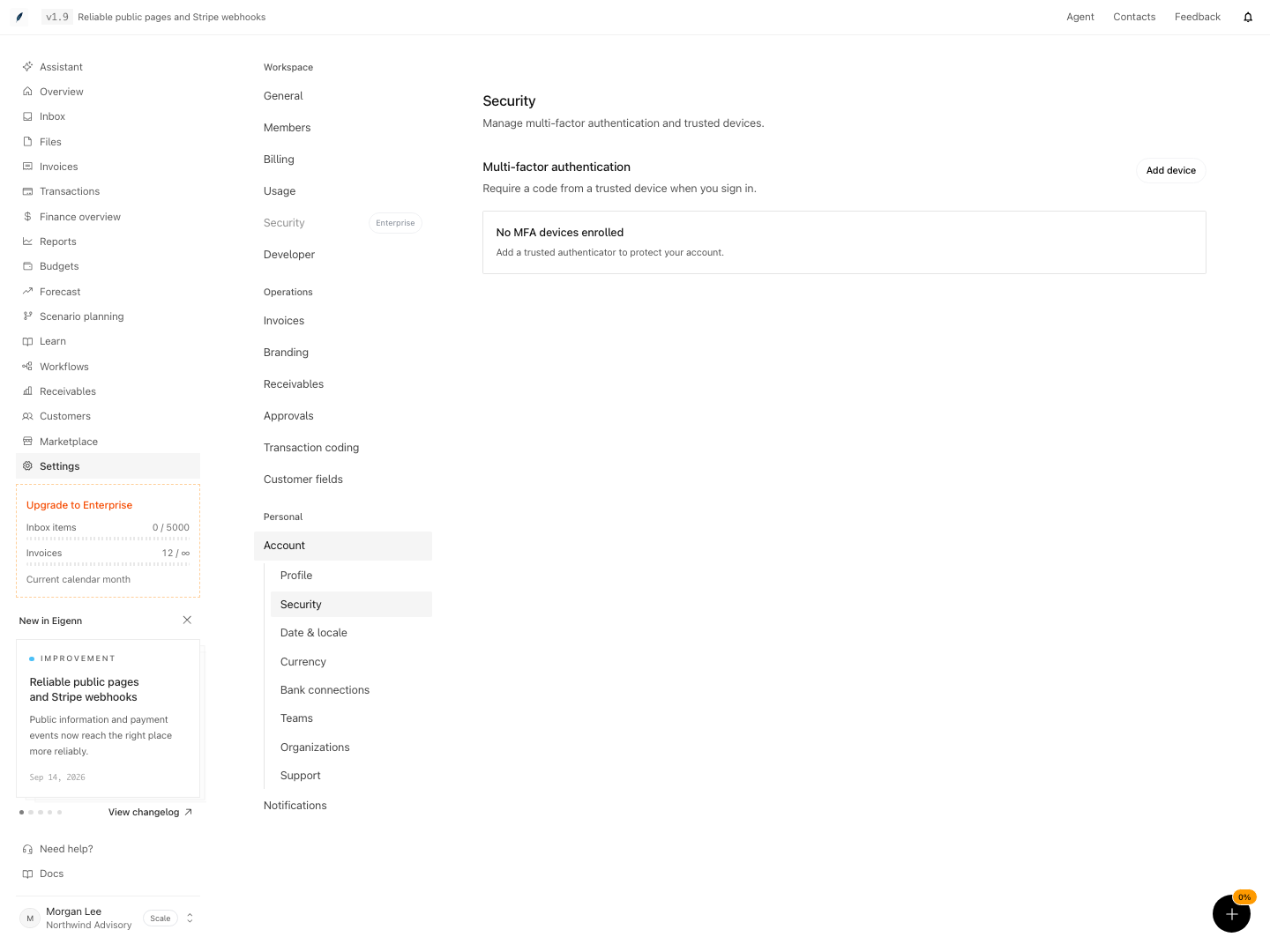
Account security before an authenticator device has been enrolled.
Shown with synthetic data in a local workspace.
Verification
Troubleshoot
Eigenn rejects a security policy save
Only an owner can update workspace Security. Confirm your role and active workspace.
Eigenn does not prompt a new member for MFA
Confirm that you turned on the policy before Eigenn created that membership. The rule is not retroactive. When you turn the policy off and on again, a current membership does not become new.
I cannot remove my last factor
Your membership is subject to the future-member MFA policy of the workspace. Add another authenticator. Confirm it. Then remove the old factor.
I turned audit logging off, but Eigenn still records entries
Eigenn caches the setting for up to five minutes. Eigenn also always records security-sensitive events, such as changes to settings, roles, membership, and directory sync.
I cannot find a session-timeout or IP-allowlist setting
Eigenn removed both controls, because nothing enforced them. Apply session and network restrictions at your identity provider, VPN, or proxy.
- As a workspace owner, enable mandatory MFA for new members and invite a new user. Expected: New member is redirected to MFA setup before accessing protected pages.
- As a normal member, confirm personal account enrolls and displays MFA factors. Expected: User can see active authenticators and enroll/remove if policy allows.
- As an owner, adjust audit logging settings. Expected: After up to five minutes, the new setting affects routine write logging; essential security events remain logged regardless.
- Attempt to delete the only MFA factor under required policy. Expected: Operation is blocked until a replacement factor is added and confirmed.
- Attempt to change workspace Security settings as a non-owner. Expected: Page is read-only and save is rejected.
- Delete an account or workspace as described. Expected: Action is irreversible and initiates external cleanup for owned resources.
Suggested invoice payments require permission to view both invoices and transactions. Confirming a match also requires Edit invoices and Manage transactions. Confirmation records a received payment and marks the invoice paid; it does not initiate a bank payment. See Invoices.