Run Your First Command Center Review
Complete a grounded first review in Assistant, check the source records, and preserve the decisions and next actions that your team needs.
Summary
This workflow turns the Assistant home into a repeatable review. The goal is not to ask as many questions as possible. The goal is to find one material issue, check it against the records, and leave an owner and a permanent result.
Capabilities
Eigenn Assistant Command Center allows users to review financial operations by aggregating data from multiple connected sources, enables structured questioning by mode, supports verification and documentation of review outcomes, and preserves work for future access or sharing.
Prerequisites
Prerequisites
- You can sign in to an Eigenn team workspace.
- You connected the bank, accounting, invoice, payment, inbox, or customer sources for this review in Marketplace.
- The recent syncs are complete.
- Someone is responsible for Approvals.
Concepts
The Command Center review process is based on the principle of grounding decisions in source records. Users are encouraged to scope their questions narrowly, use Assistant modes for targeted queries, and verify every key outcome against the underlying data. Connected apps provide the Assistant with the necessary context for accurate results.
Workflow
1. Confirm Source Readiness
Open Marketplace. Check the apps that supply this review. Then open the detailed finance pages. Confirm that recent balances, invoices, and transactions exist.
Do not treat an empty Assistant tile as proof of a clean business state. On the first review, a $0, 0, No data, or Not run value must trigger a source check.
2. Open Assistant
Choose Assistant in the primary sidebar.
Before you send a message, scan:
- Today's briefing
- Business command center
- The selected specialist mode
- The connected-app chips
- The Get set up checklist when it appears
The setup checklist can guide you through Connect a bank, Set up automatic chasing, Run your first cash forecast, and Set a cash-floor alert. A skipped step remains available later.
3. Read Today's Briefing
Work the groups in this order:
- Needs attention for overdue invoices, approvals, or new Workspace items.
- Focus today for the action with the most effect.
- Highlights to confirm what improved.
Choose one item to hand its prepared prompt to Assistant. If the item also links to a product page, open that page and keep it available for verification.
If the briefing does not appear, continue with the command-center widgets. The briefing hides when no source produces a usable signal.
4. Check the Business Command Center
Read these live-backed widgets first:
- Cash balance
- Runway
- Open invoices
- Overdue receivables
- Transactions
- Inbox
- App health
Use Open finance view to check cash and account detail. Use the detailed view and not the single home total when you have many currencies.
Then use the action widgets Collections queue, Budgets, Time tracked, and Notifications. Use them only when they support the decision that you examine.
5. Choose the Right Mode
Use one mode for the first question:
- Cash control for runway, burn, working capital, or when payments happen
- Collections for overdue accounts and recovery work
- Documents for attached receipts, invoices, contracts, or page data
- Workflows for a recurring process and how it handles approval or failure
- Autopilot when the question spans many areas and Eigenn must route it automatically
The first review is easier to audit when the question has one primary objective.
6. Scope Connected Apps
Choose Connected apps in the composer. Select only the sources that the next request needs. You can also type recognized mentions such as @gmail or @slack.
The app scope affects the next request. It does not install the app. New chat clears the selected apps.
Attach up to five supported images or PDFs for a file-based review. To use data from a workspace page, type @page at the end of the composer. Then choose a page that contains data blocks.
7. Ask a Decision-Ready Question
Include the period, the decision, and the evidence that you want. The command center already has these good prompts:
Review cash position and explain the main risks.Explain runway and the top moves to extend it.Review open invoices and prioritize next actions.Build a collections playbook for overdue receivables.Review transactions that need categorization or receipts.Run a forecast risk scan and summarize the next decision.
Add your constraint, for example: “Use the next 13 weeks,” “separate confirmed facts from assumptions,” or “draft only—do not send.”
8. Read the Response and Tool Activity
Wait for the response to finish. Read the specialist and tool activity, the links that support the answer, and any structured result.
If an analysis opens in Assistant canvas:
- Check its title and the As of time when Eigenn shows it.
- Compare the values with the source page.
- Use Refresh when the result has a saved source call and needs current data.
- Use the tabs to compare stacked analyses.
- Ask a follow-up about a specific row or result before you accept the conclusion.
9. Confirm the Material Facts
Open the page that owns each important number:
- Overview for the decision summary
- Invoices for invoice state and amount
- Receivables for collection work
- Transactions for categorization and evidence
- Finances → Reports for revenue, profit, burn, and spend detail
- Finances → Forecast for scenario assumptions
- Settings → Account → Bank Connections for connection problems
Resolve any disagreement in the source record. Do not change the source only to make it match the Assistant answer.
10. Examine the Proposed Actions
Open Approvals.
- Filter to Open.
- Select the relevant proposal.
- Read what the approval does, the amount, the context, and the runway impact.
- Choose Claim if you own the decision.
- Choose Approve or Reject.
- Wait for Done or Failed before you treat the proposal as complete.
Use Undo only when it appears and the undo window is still open.
11. Preserve the Review
Choose the preservation method that matches the result:
- Keep on home for a sourced analysis that you want to rerun from Assistant
- Pin for a frozen snapshot that must survive chat retention
- Add to page for a workspace document that you keep up to date
- Share for a read-only public snapshot
- Save as decision on supported affordability, pricing, or hiring results
Use Chat history to browse conversations by their generated titles, search recent work, resume a conversation, or start New chat. Eigenn cleans up older chats automatically. Preserve material results separately.
12. Close the Loop
Record:
- The decision
- The owner
- The next checkpoint
- The source pages that you used for the check
- Any approval that is still Approved, Executing, or Failed and not Done
Return to Overview. Confirm that the Do these first queue matches the work that is still open.
Behavior specification
Troubleshoot
Assistant says I am signed out or my session expired
Choose Sign in. Return to the team workspace. Then reopen Assistant. Assistant chat needs both a user session and team context.
Message limit reached
Wait a few minutes before you send another request. The composer warns you about the message count as you come near the limit.
A connected app does not appear in the answer
Confirm that you installed the app in Marketplace. Then select it under Connected apps, or mention its recognized slug in the request.
A response has no canvas
Not every answer produces a structured analysis. Continue in the transcript, or ask for a table, comparison, chart, or other structured output when it is applicable.
Refresh creates another tab
This is the correct behavior. Refresh keeps the prior analysis. It adds the new result to the canvas stack, so you can compare them.
An approval remains Approved
Approval and execution are separate steps. Check Done and Failed. Then ask support to check the proposal if the status does not advance.
A shared result does not update
Share links are frozen read-only snapshots. Refresh the analysis first. Then create a new share when recipients need current values.
Diagrams
Rendering diagram…
Screenshots
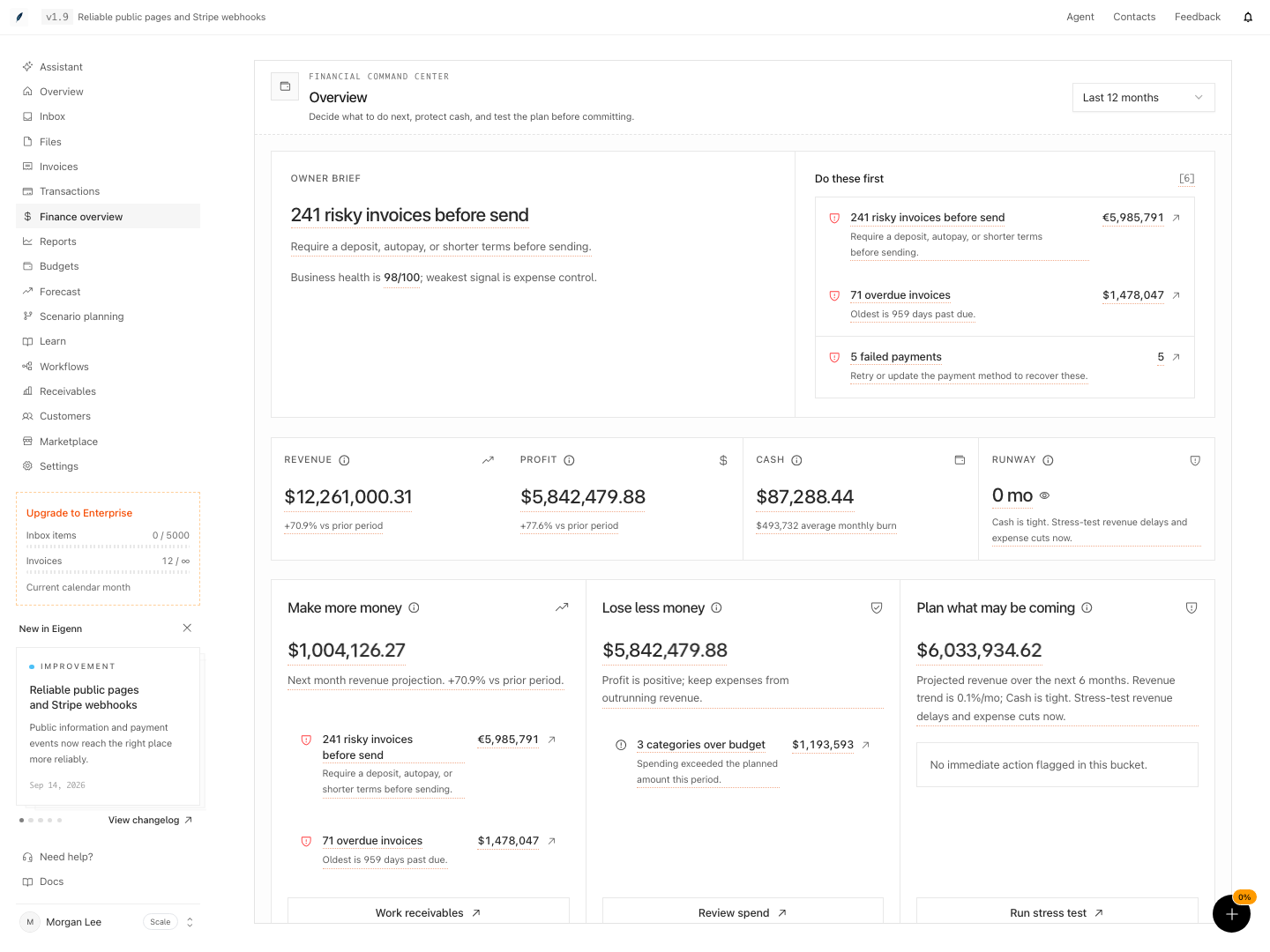
Shown with synthetic data in a local workspace.
Verification
Confirm the Result
Your first Command Center review is successful when:
- You checked source readiness before the analysis
- You asked one decision-ready question in the correct mode
- You checked the material values outside Assistant
- You examined every consequential action in Approvals
- You pinned, added to a page, kept on home, shared, or saved the result as a decision when necessary
- A named owner and a follow-up point exist
- Sign in to your team workspace and confirm all required sources are connected and recent data is available. Expected: All connected apps show current balances and transactions.
- Access the Assistant and ensure both 'Today's briefing' and the Business Command Center widgets are displaying information. Expected: Both interfaces show actionable summaries and widgets are populated with data.
- Ask one decision-ready question as specified, scoped to the appropriate mode. Expected: Assistant accepts the question, limits scope to selected apps, and responds.
- Confirm each important value by cross-checking with the corresponding source record or page. Expected: All facts used in the response match the primary data sources.
- If any consequential action is proposed (e.g., Approvals), inspect and process as directed. Expected: Approval flows progress to completion, with clear status messages.
- Demonstrate at least one preservation action, such as pinning or sharing a result. Expected: The chosen preservation method reflects visibly in Assistant or on home.
- Record the decision, owner, and next checkpoint, then verify the overview reflects any open follow-up items. Expected: Work queues and overviews are updated accordingly.