Workflow Pauses
Set up human checkpoints, read pending actions, understand pause states, and confirm resume or cancellation outcomes.
Summary
A Pause block creates a Workflow Pause, which is a human-in-the-loop checkpoint. A pause lets a run record a message and stop at a specific node. The run then waits for a decision before Eigenn tries later work.
Capabilities
Workflow Pauses include the ability to set manual approval steps within automated workflows, review checkpoint messages and metadata, submit JSON resume payloads, view audit dashboards of pending and completed actions, and handle pause expiration and cancellation through the web interface. Both web and API avenues are supported for resuming or managing checkpoints.
Prerequisites
Prerequisites
- Use a Starter or higher workspace.
- Use a workspace owner for the supported Workflows navigation and write actions.
- Deploy a workflow that contains a configured Pause block.
- Make the checkpoint message specific enough for a reviewer to make a safe decision.
Concepts
Wait and Pause Are Different
| Block | Purpose | How it continues |
|---|---|---|
| Wait | Delay execution by minutes, hours, or days from policy start, invoice due date, or the previous step. | A scheduled resume runs after the calculated time. |
| Pause | Stop for human review. Create a checkpoint record. | Eigenn must queue a resume request. The configured timeout can also make the run eligible for scheduled continuation. |
Both can put an execution in Waiting. Always examine the current node.
Pause States
| State | Description |
|---|---|
| Awaiting Action / Pending | The checkpoint record can accept a resume or cancel action. |
| Resumed | Eigenn marked the checkpoint record resumed. Confirm the execution separately. |
| Expired | The configured expiry passed before anyone resumed the checkpoint. |
| Canceled | Someone canceled the checkpoint record. This alone does not cancel the execution. |
The card can show an Expires timestamp. Treat the timestamp and execution state as separate facts from the badge.
Workflow
Configure a Pause Block
In Workflow Studio, add Pause. Select it. Then open Editor.
- Message is the context displayed to the reviewer.
- Resume Key is an optional namespace key. Eigenn merges the resume payload under it instead of at the top level of the execution context.
- Timeout (seconds) is optional. When you give a value, it must be at least 60 seconds.
Leave Resume Key empty for ordinary web-managed checkpoints. The worker then generates a unique UUID for each pause. A configured fixed key is unique at the database level. If you use the same value across many executions, the run can resolve to an earlier checkpoint. It then does not create a new checkpoint.
Connect the Pause block to the next block. Save the workflow. Check the workflow. Then deploy the workflow.
Open Workflow Pauses
Choose Workflows in the primary sidebar, then the Pauses tab.
You can also reach the dashboard from a run:
- Open Workflows → Executions.
- Select a run in the Waiting state.
- Choose View All Pauses in Action Required.
You can act on a pending pause directly from Action Required in Execution Details.
Read the Dashboard
The summary cards are:
- Pending Action from an exact pending-count query,
- Resumed from up to 100 resumed records,
- Expired from up to 100 expired records, and
- Total from up to 100 records of any state.
The All Pauses list loads up to 50 records by default. The list puts pending records first, then newer records. Use Search pauses... to match node ID, message, execution ID, or workflow-definition ID. Use All Statuses to choose Pending, Resumed, Expired, or Canceled.
These cards and lists are operational summaries, not an unlimited audit export.
Review Pause Details
Select a card or choose Resume to open Pause Details. The modal includes:
- status and expiry,
- workflow-definition ID,
- execution ID,
- node ID,
- resume key,
- created and resumed timestamps, and
- the checkpoint message.
For pending checkpoints, Resume Payload (Optional) accepts a JSON object. The browser rejects invalid JSON.
Example:
{
  "approved": true,
  "notes": "Approved after invoice review"
}
Do not enter secrets. Runtime context can appear as raw JSON on the execution page.
Cancel a Pause
Choose Cancel Pause only when you want to close the checkpoint record itself. The action changes a pending pause to Canceled.
It does not:
- cancel the execution,
- advance the execution to the next block, or
- create a replacement run.
If the execution must stop, use Stop while the editor tracks that run. You can also use an authorized execution-cancel integration. If the execution must continue, resolve the resume path. Do not cancel the checkpoint.
Behavior specification
Resume Behavior
Resume Workflow in the web app and the resume operation used by the worker call the same service. An approval from the web app and an approval from the API behave identically.
When you resume a pending checkpoint, Eigenn:
- Writes your payload into the execution context, merged under the payload key when you supply one.
- Marks the checkpoint
resumedand records who resolved it and when. - Enqueues the continuation job for the worker.
Eigenn writes the payload before it enqueues the job. The job reads the context from the stored row, so writing first prevents a race that could discard your answer. Writing first is also idempotent: the job merges the same payload again.
Terminal checkpoints
A checkpoint that is no longer pending is not an error. Eigenn reports what actually happened and does not enqueue a second run:
| Result | Meaning |
|---|---|
queued | The continuation job was enqueued. The toast says Workflow resumed successfully. |
already_resumed | Someone already resumed this checkpoint. |
expired | The checkpoint passed its timeout. |
canceled | Someone canceled this checkpoint. |
A double-click cannot start the run twice. For a terminal result, the app shows a warning with the reason instead of a success message.
Confirm the run continued
- Return to Execution Details.
- Refresh the page.
- Confirm that the execution moves from Waiting to Running or Completed.
- Confirm that a resumed step appears in Execution Replay.
If the run stays in the Waiting state after a queued result, preserve the execution ID and the resume key, then contact support.
Timeout Behavior
The Pause editor describes timeout as auto-expiration. In the engine, the timeout also becomes the execution's scheduled resume time. A sweep for runs in the Waiting state runs every two minutes and can enqueue continuation after that time. The resume job then marks pending records Resumed.
Resuming a checkpoint after its expiry returns the expired result instead of starting the run.
A passed wall-clock expiry does not guarantee that the dashboard already says Expired. Check the execution's current state and replay before you decide whether work is still blocked.
Idempotency and Concurrency
- A generated resume key is unique per checkpoint.
- For an already-resumed, expired, or canceled checkpoint, the resume operation returns a terminal result. It does not queue a second resume.
- The web action rejects any checkpoint that is no longer pending.
- The worker resume job row-locks the execution and skips a run that is no longer resumable.
- A run in the Waiting state will not resume while its workflow definition is inactive.
Diagrams
Rendering diagram…
Screenshots
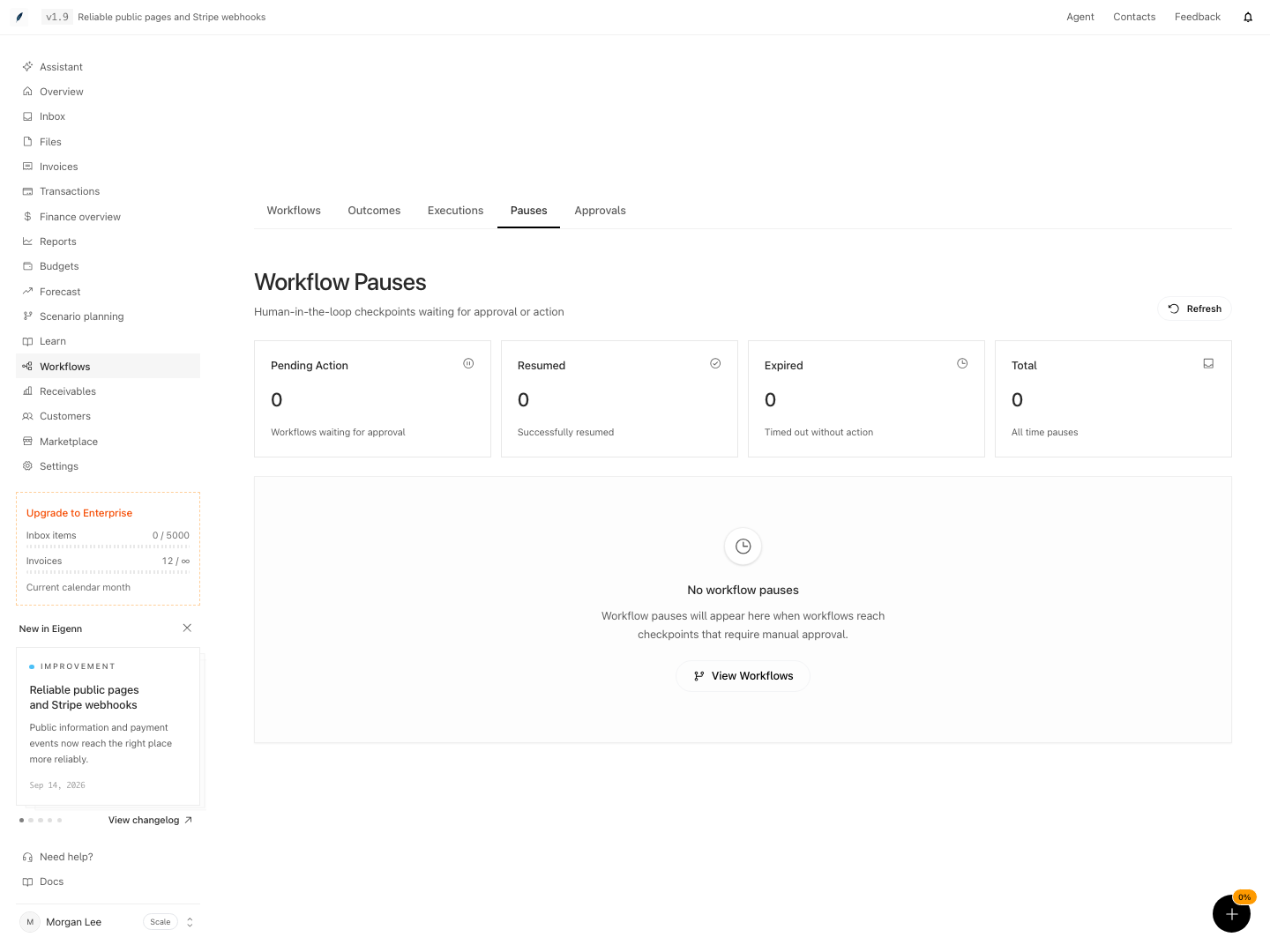
Shown with synthetic data in a local workspace.
Verification
Troubleshoot
Resume Payload says invalid JSON
Enter one JSON object with quoted property names. The current form contract does not accept arrays, comments, or a comma at the end.
Resume succeeded but the execution is still Waiting
This matches the current gap in the web connection. Refresh Execution Details. Then escalate with the execution ID, node ID, and resume key. Do not click Resume again. The pause is no longer pending.
Cancel Pause did not cancel the run
A checkpoint cancellation and an execution cancellation are different operations. The current pause button only changes the checkpoint record.
A pause shows Expires in the past but still says Awaiting Action
Eigenn persists the status. The browser does not derive it from the current clock. Refresh the page. Then examine the execution. The resume endpoint, scheduled continuation, and current web action handle expiry differently.
The pause did not produce a new card
Check that the workflow was active. Check that the execution reached the Pause node. Check that you did not use the Resume Key again. Open the run’s replay to confirm the current node.
Eigenn skipped the resume after a deactivation
A resume job needs the workflow definition to remain active. Examine the current definition and the execution in the Waiting state first. Then reactivate the workflow. Major node or edge changes can make continuation unsafe.
- Deploy a workflow containing a Pause block, ensuring the block is properly configured with a message.
- Start a run that triggers the Pause block.
- Open Workflows > Pauses and confirm the new checkpoint appears as Pending in the dashboard.
- Click on the checkpoint to open Pause Details and verify metadata fields (status, workflow-definition ID, execution ID, node ID, timestamps) match expectations.
- Enter a valid JSON object in Resume Payload and click Resume; confirm the status changes to Resumed and a continuation job is initiated.
- Navigate to the relevant Execution Details, refresh the page, and check that the execution state transitions from Waiting to Running or Completed, with the resumed step visible in Execution Replay.
- Attempt to resume an already-resolved checkpoint and confirm a warning is shown with the correct terminal state message.
- Test cancellation by selecting Cancel Pause on a Pending checkpoint, and confirm the record now shows as Canceled, with no effect on the full execution unless separately stopped.